Attendance Feature
This section covers:
- Attendance Feature in TreeAMS
- Attendance Views
- How to View Attendance Records
- How do I set up the Attendance feature?
🕒 Attendance Feature in TreeAMS
The Attendance feature is used to track clock-in and clock-out records, monitor staff presence, and review working duration by day, month, team, or location.
It supports both individual tracking and team-level visibility for operational monitoring.
📍 Clock In & Clock Out with Geolocation / Proximity
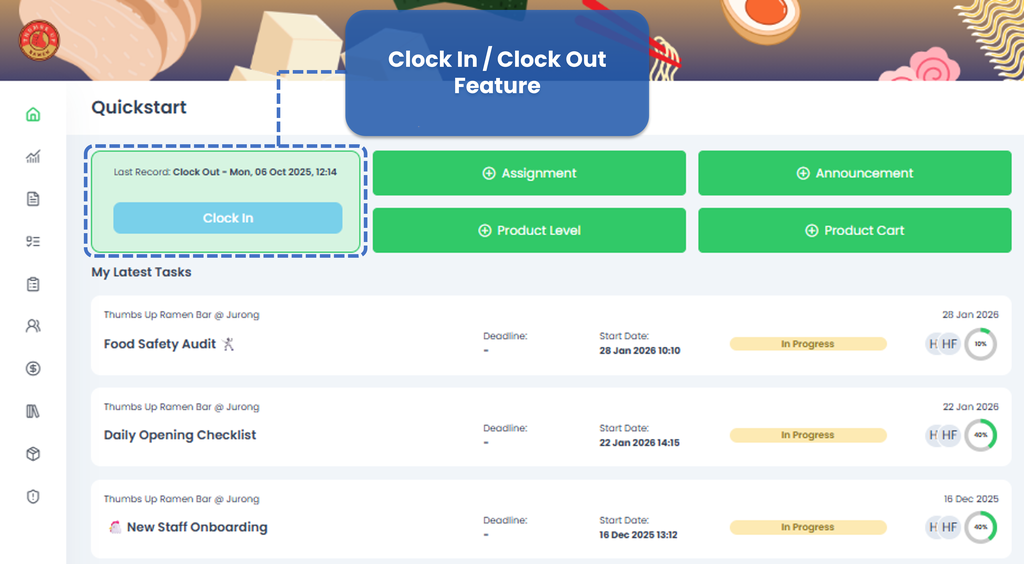
The Clock In / Clock Out feature with Geolocation / Proximity ensures that staff can only record attendance when they are physically present at the assigned location. This helps prevent invalid or off-site attendance records.
How Users Clock In / Clock Out
- Open TreeAMS on any device (mobile, tablet, or desktop).
- Go to the Clock In / Clock Out screen.
- Ensure GPS is active and location permission is allowed.
- Tap Clock In when starting work, or Clock Out when ending work.
- The system validates the user’s location before recording attendance.
Clock In/Out using Mobile
Clock In/Out using Desktop
Requirements Before Using
To use Clock In / Clock Out with Geolocation / Proximity, make sure:
- The user is assigned to a Team with Attendance enabled (Timeclock and Proximity Check are turned on).
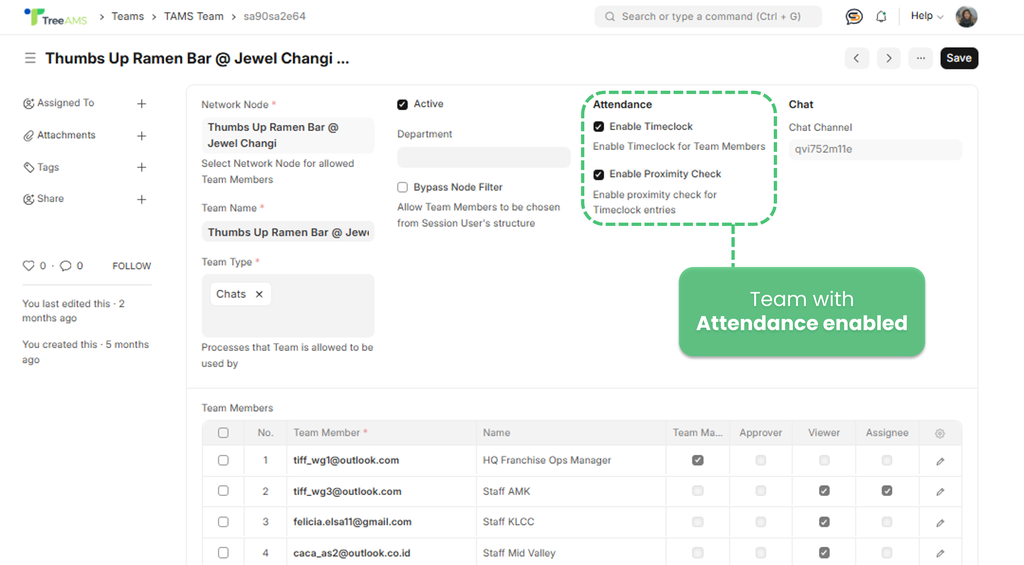
- Only one Timeclock Team per location is active to avoid overlapping attendance data.
- The team is linked to the correct Unit / Location, where Geolocation and address have been properly set up.
- The user allows:
- ❗Location permission in the browser or device
- ❗GPS to be turned on
🔍 Attendance Views
- My Attendance
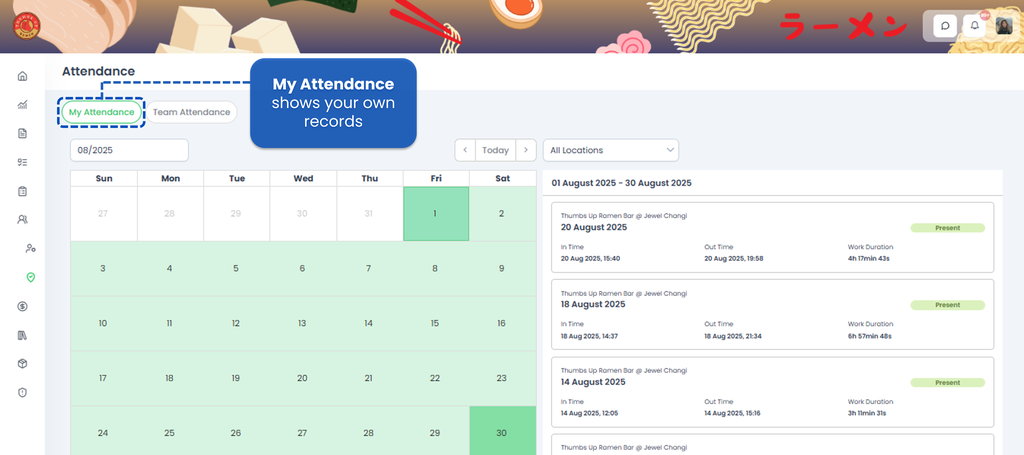 Use this view to:
- See your own attendance records
- Check clock-in / clock-out time
- Review daily work duration
- Team Attendance
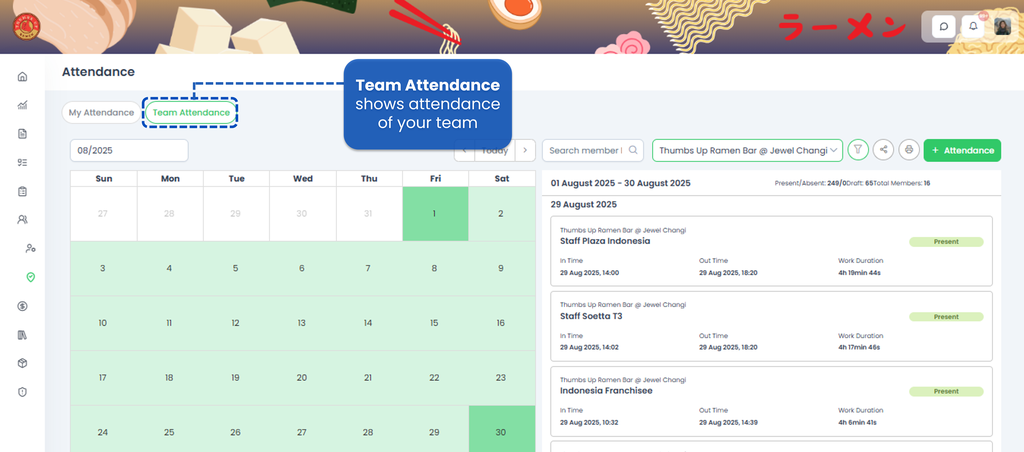 Use this view to:
- Monitor attendance for all team members
- Review attendance by date, month, and location
- Identify present, absent, or incomplete records
How to View Attendance Records
- From the left menu panel, select Team.
- Select Attendance.
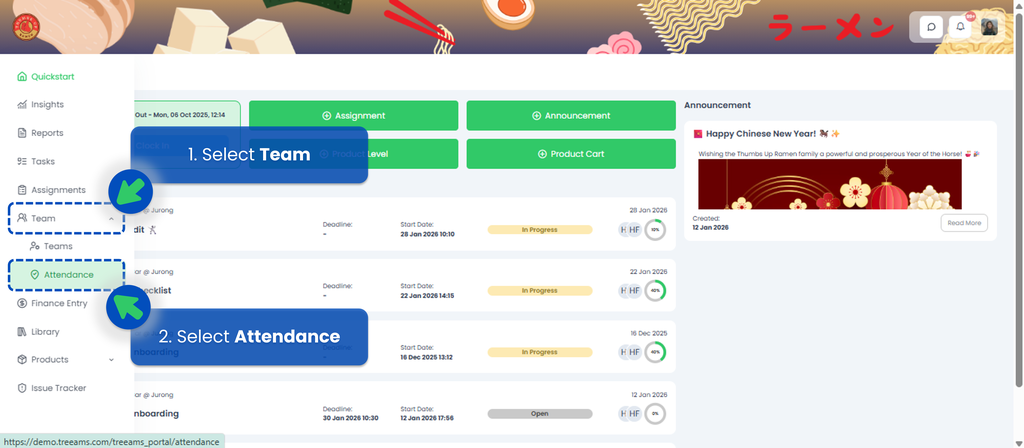
- Select My Attendance or Team Attendance.
- Choose the period and date range from the calendar.
- Select the location you want to view.
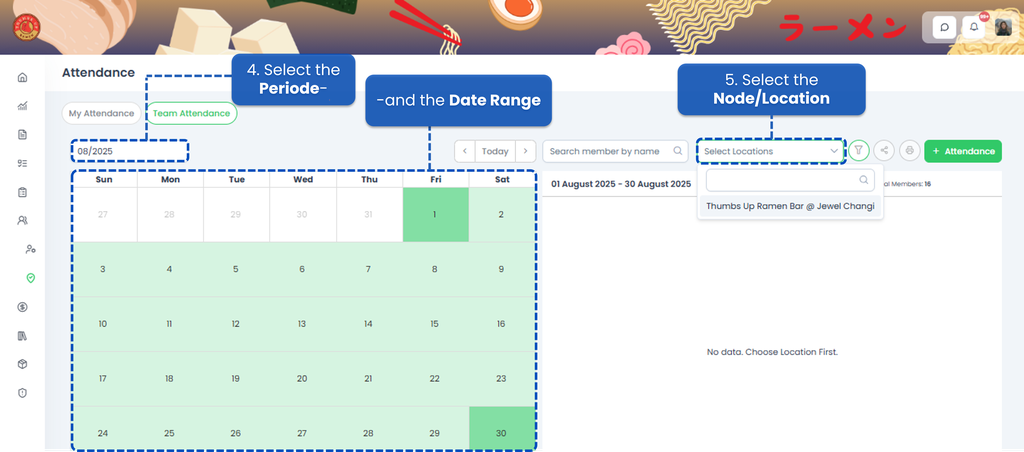
- Attendance records for the selected period will appear on the right panel.
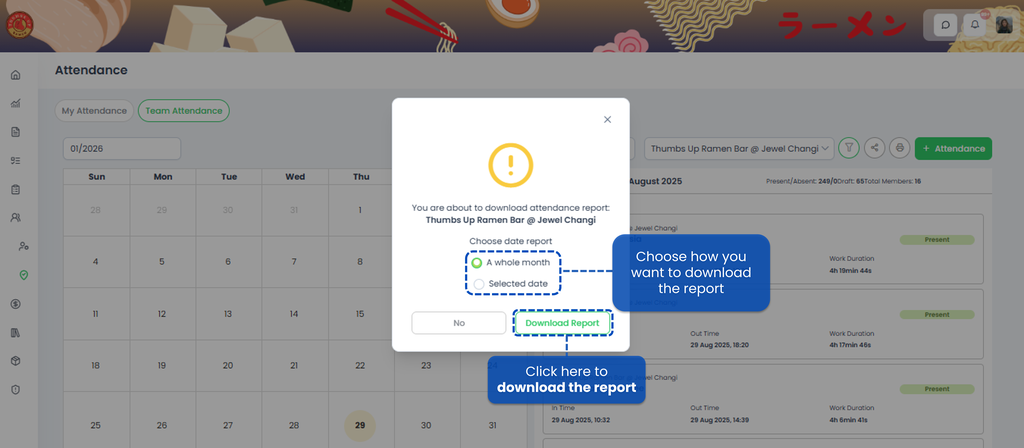
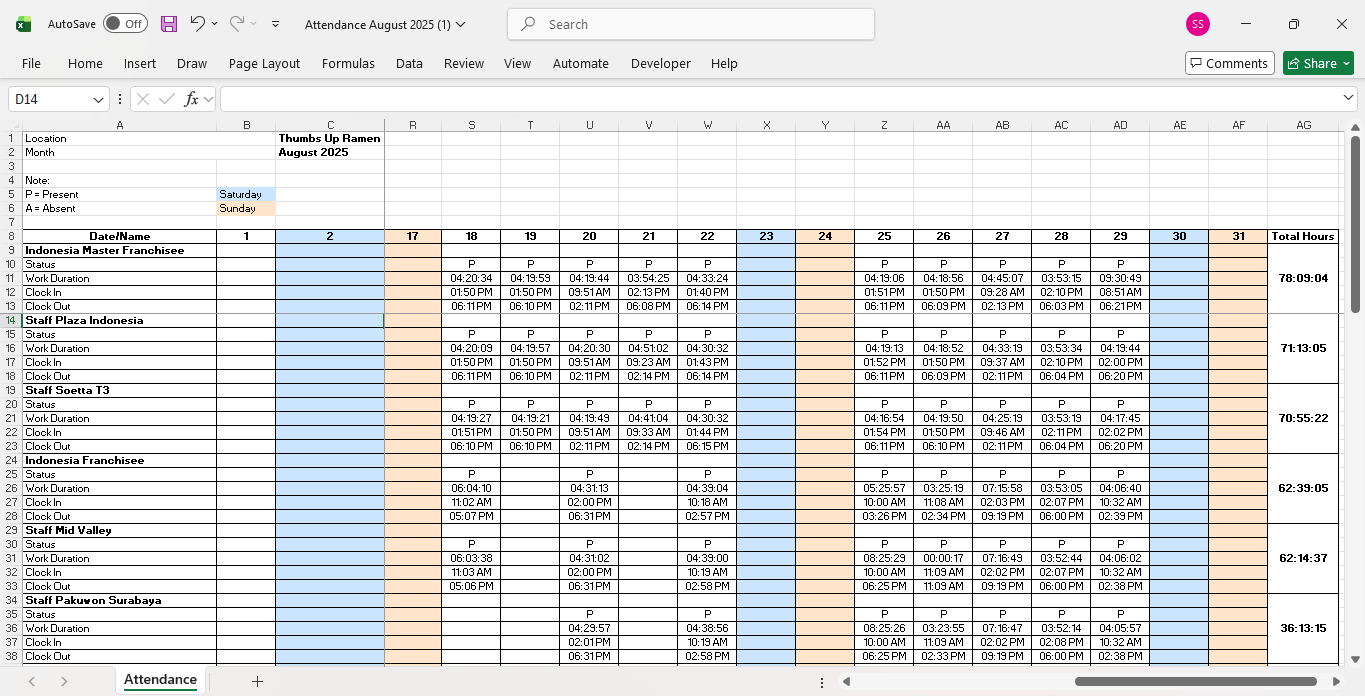
- To export the data, click the Print icon to download the attendance report as an .xlsx file.
How do I set up the Attendance feature?
To start using the Attendance feature, your role must be TreeAMS Site Admin, or TreeAMS Site User with the sub-role TreeAMS Network Manager. Once you have the correct role, you can configure the settings: 📺 Watch the video tutorial to see the full step-by-step setup guide.