Content Collection: Training Course
This section covers:
- Content blocks for a Training Course
- How to create and edit a Training Course
- How to set permissions for a Training Course
- Video guideline on how to create a Training Course
- How to Create Certificate in Training
Content blocks for a Training Course
In TreeAMS, there are different content blocks that can go into a Training Course:
How to create and edit a Training Course
- Go to Admin Site (Desk). Learn how you can switch to Desk here!
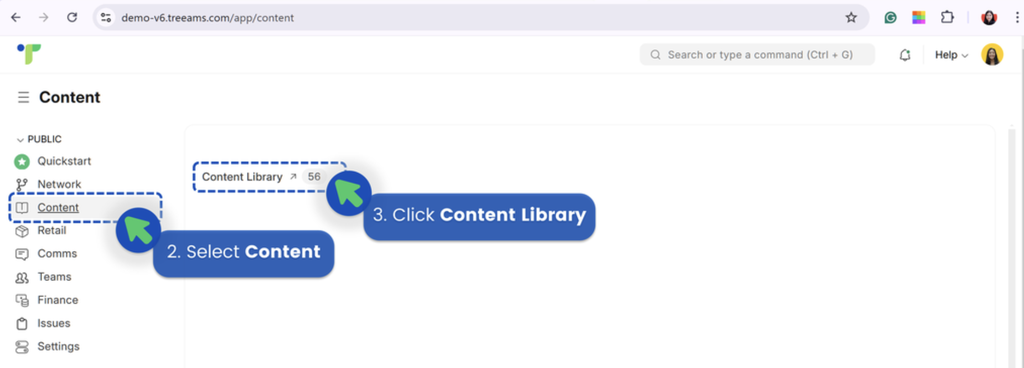
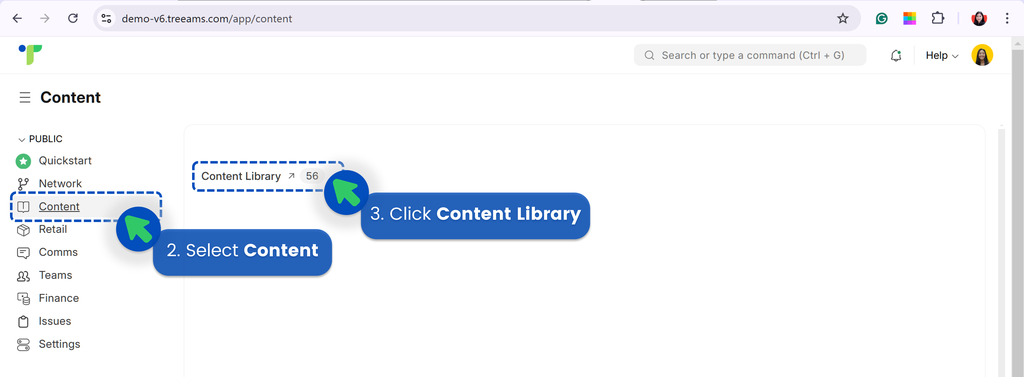
- Select Content
-
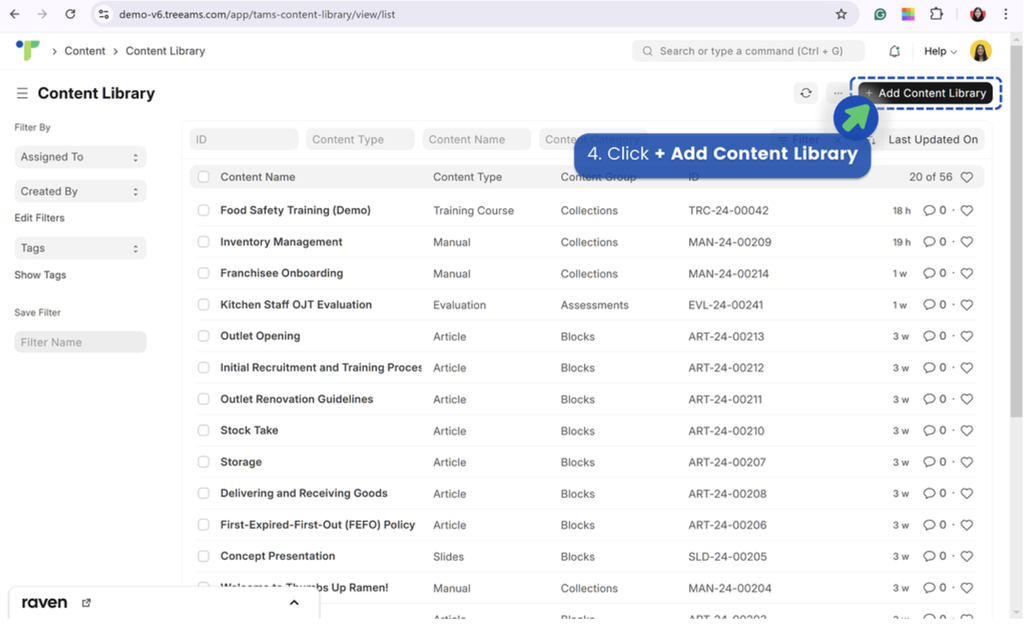
Click Content Library
-
Click + Add Content Library
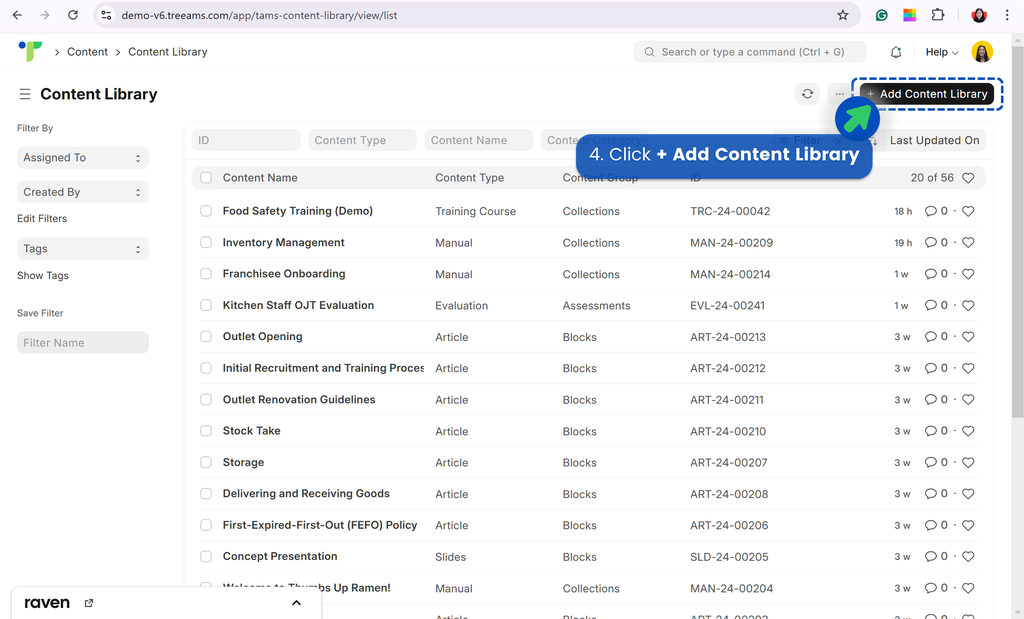
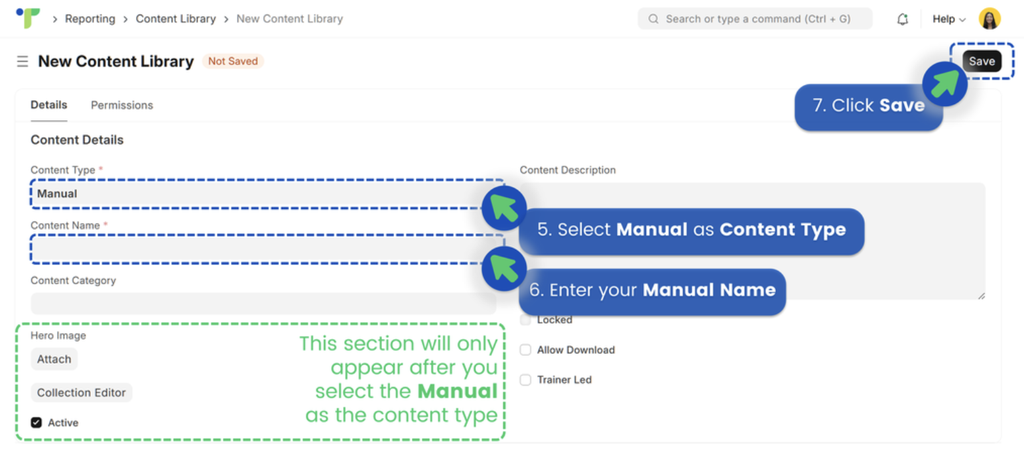
- Select Training Course as Content Type
- Enter your training course name
-
Click Save

-
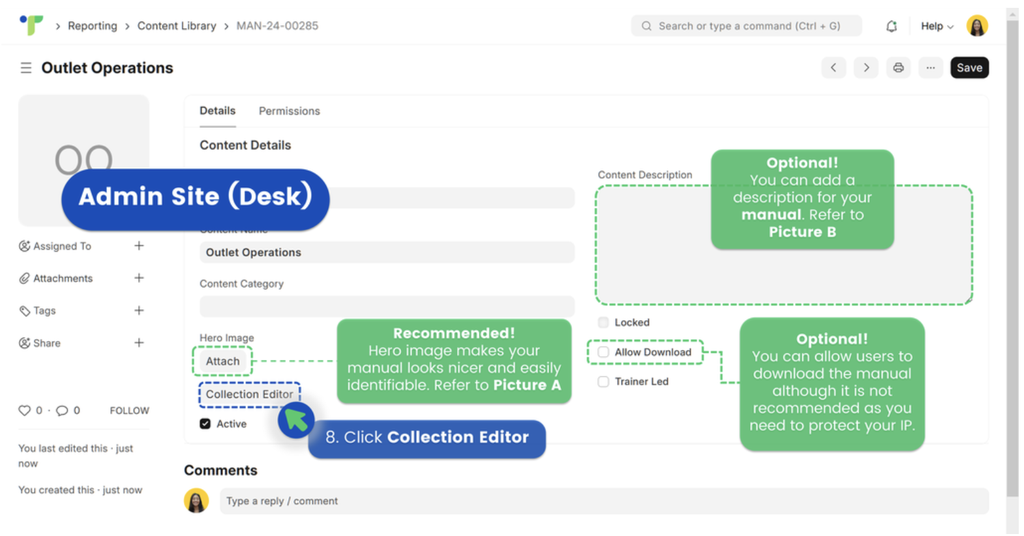
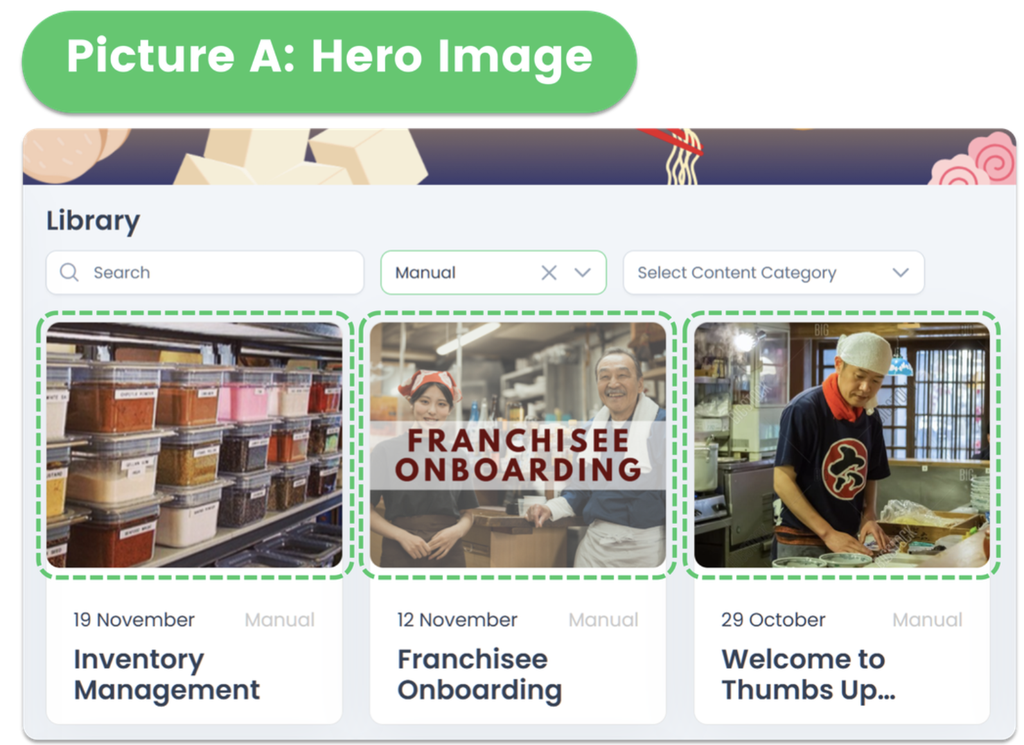
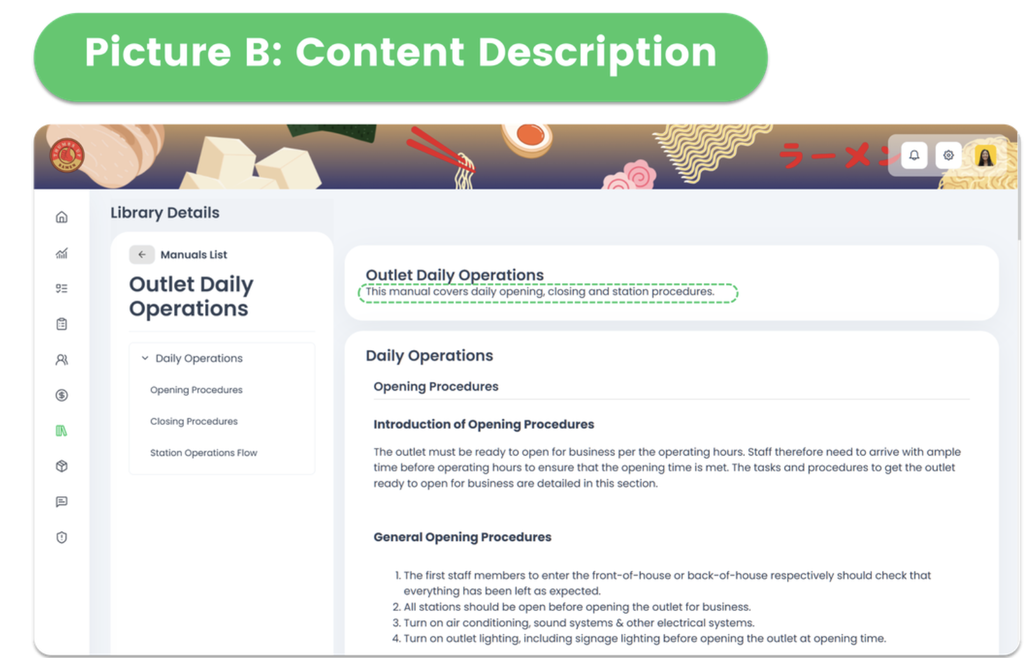
Click Collection Editor. You may also add a Hero Image and Content Description for the training course.
💡 Tips: if you are going to use this for trainers to do evaluations, don't forget to tick Trainer Led!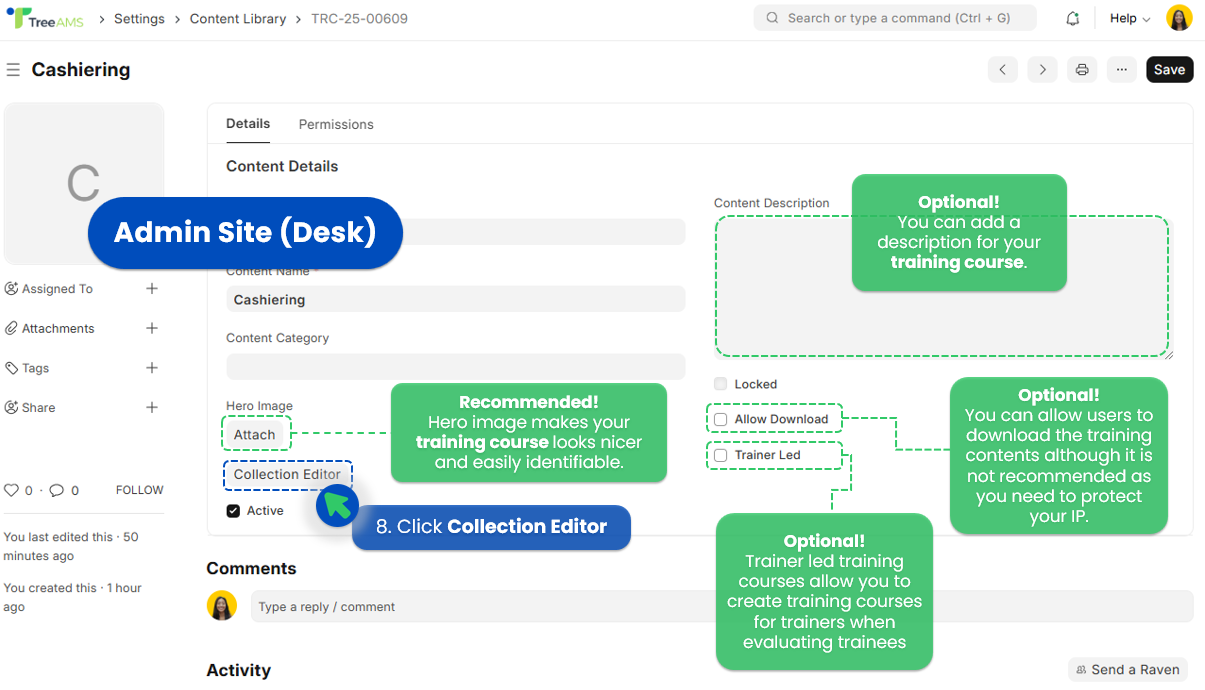
-
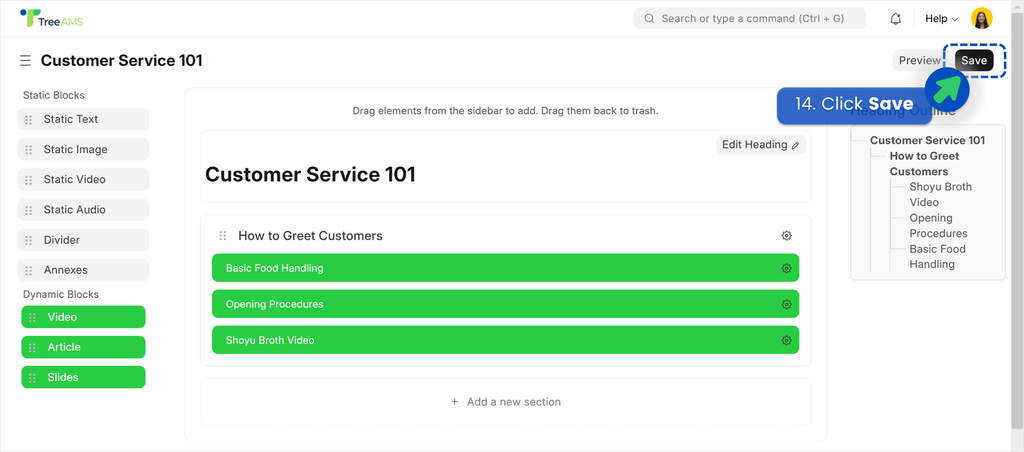
To start adding content blocks to a training course, you have to create a section by clicking + Add a new section
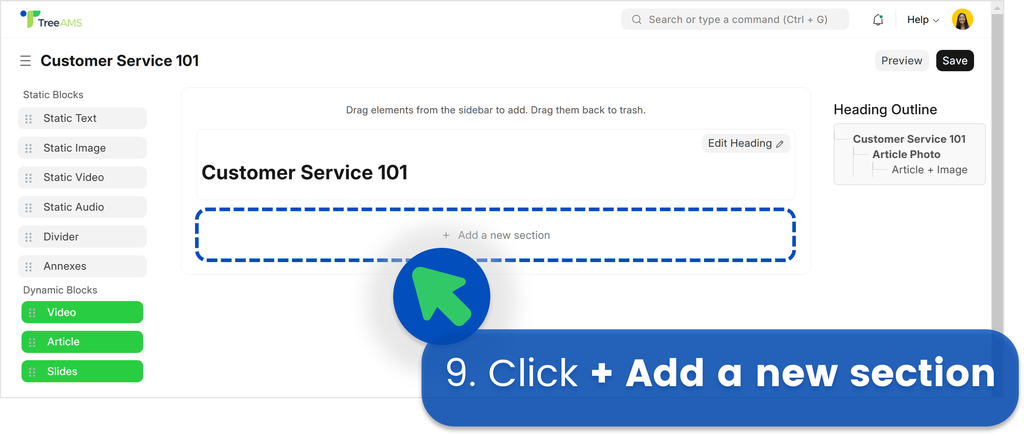
What is a section?
A section is a group of content blocks under a content collection, like a manual and training course. Refer to the below picture for more clarity.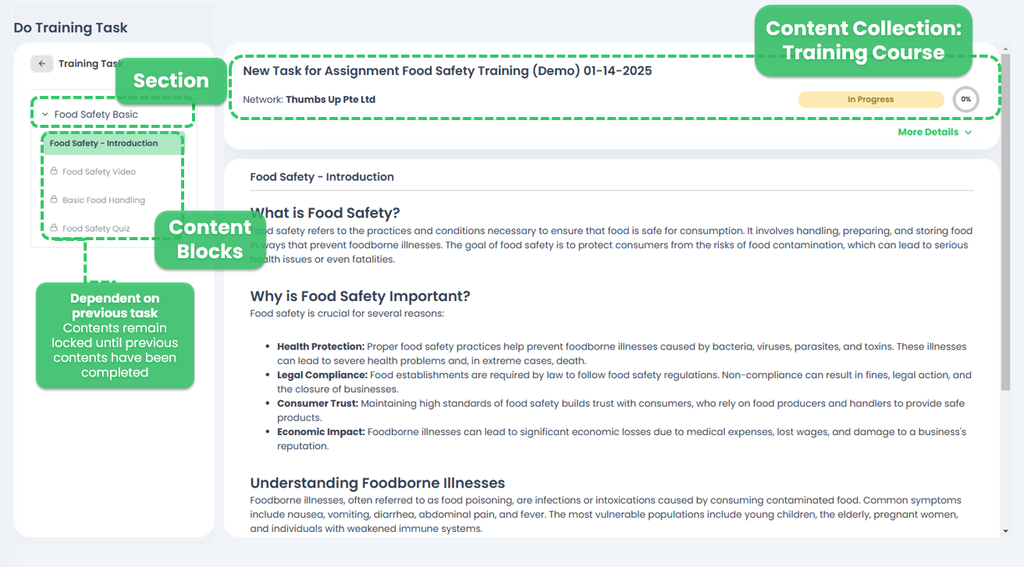
-
Enter the number of columns for the section.
Note: in TreeAMS, you can have the section split into several columns to have your content appear side-by-side - Enter the section name
-
Check the 'Dependent on previous section' box if you want the user to complete the assignment content by content. The content will only be unlocked after completing the previous content.
Do not tick if you want them to access the training contents all at the same time. -
Click Update

- Now that your section has been created, you can drag and drop your content blocks into the section!
-
Click Save
How to set permissions for a Training Course
Refer to Content Permission for more information on how to configure your permission for a training course and other content blocks and collections.
Video guideline on how to create a training course
How to create a Certificate for a Training
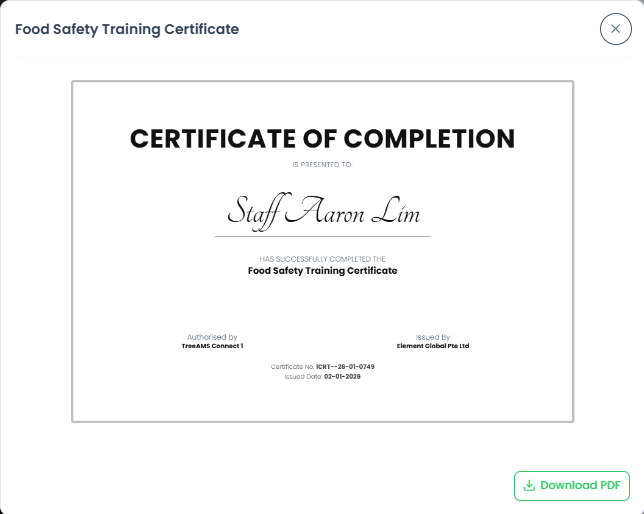
You can create a Training Certificate to automatically recognize users who successfully complete a training program. Once linked to a training, the certificate will be generated automatically for users who pass the training.
Steps:
- Go to Desk. Learn how you can switch to Desk here!
-
Go to the search bar and type "Certificate List". Here you will create a Certificate Template in the Certificate List.
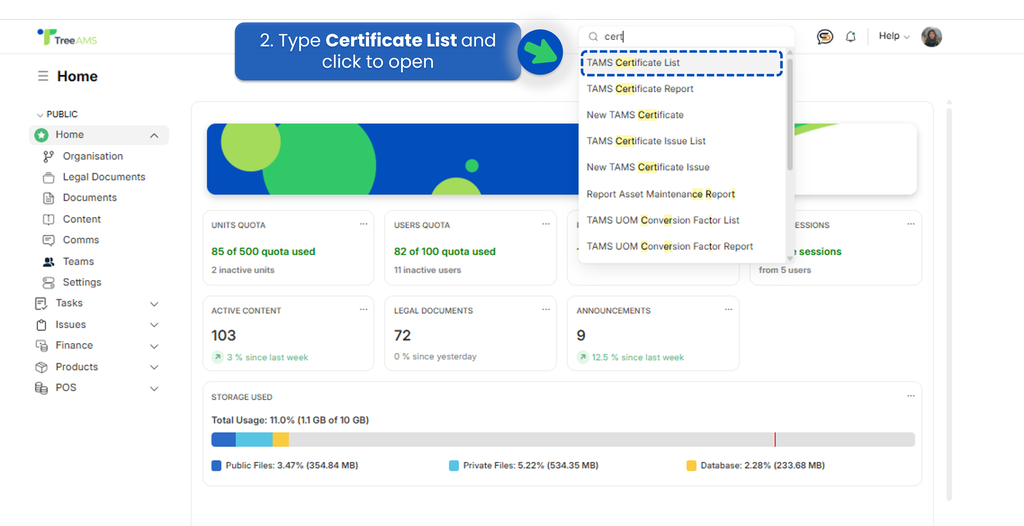
- Click +Add TAMS Certificate.
-
Fill in the required field:
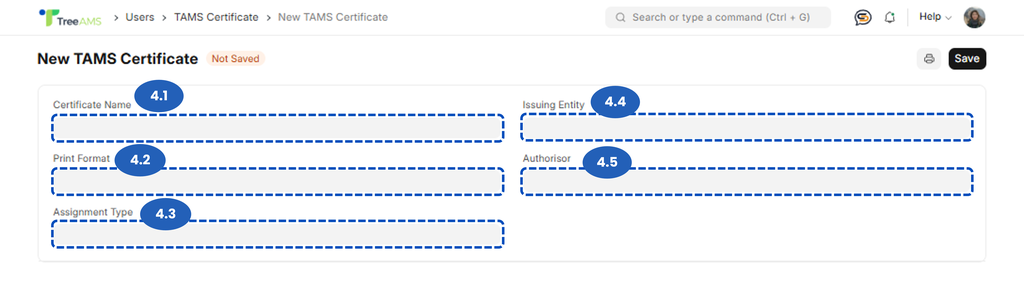
- Certificate Name — Name of the certificate template.
- Print Format — Certificate layout used when generating the certificate.
- Assignment Type — Assignment that triggers the certificate once completed. For this case, select Assign Training.
- Issuing Entity — Organization issuing the certificate.
- Authorisor — Person approving or signing the certificate.
⚠️ Important Notes
The Certificate Design strictly follows the system template. The Participant Name on the certificate will automatically follow the name of the user who passed the training. - Then click Save.
- Then click Submit to finalize and activate the certificate template.
-
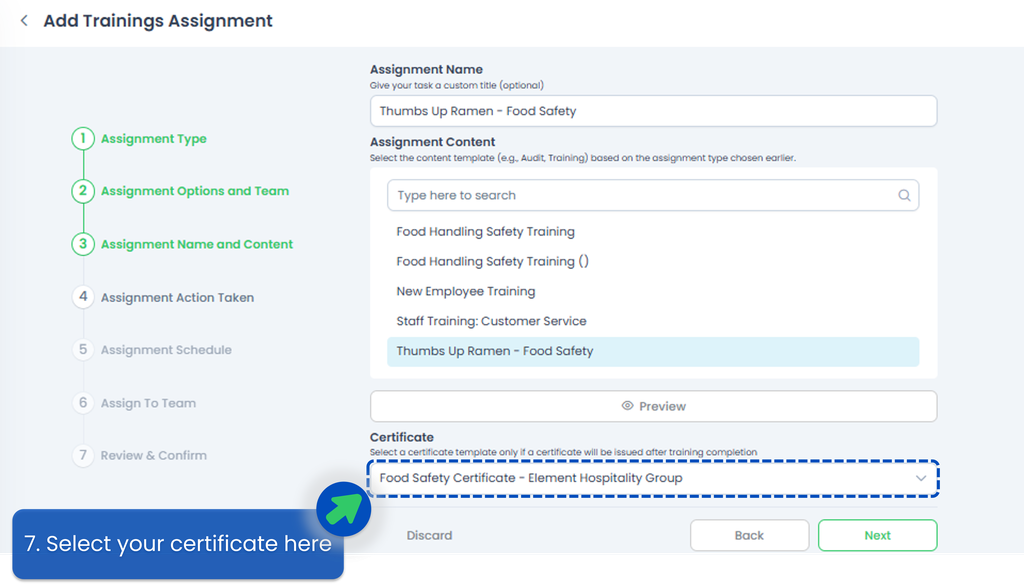
Once the certificate is submitted, it will be available to select when assigning a training.
-
Once the training is completed and passed, the certificate is generated automatically (if auto-generate is enabled).