How to Use the Issue Tracker
In this video, we'll walk you through on How to Use the Issue Tracker from Two different Point of View: Issue Raiser and Issue Fixer.
🚨 Note: Only the Issue Raiser and the assigned Issue Fixer Team can access and view issues that have been raised.
How to Raise an Issue
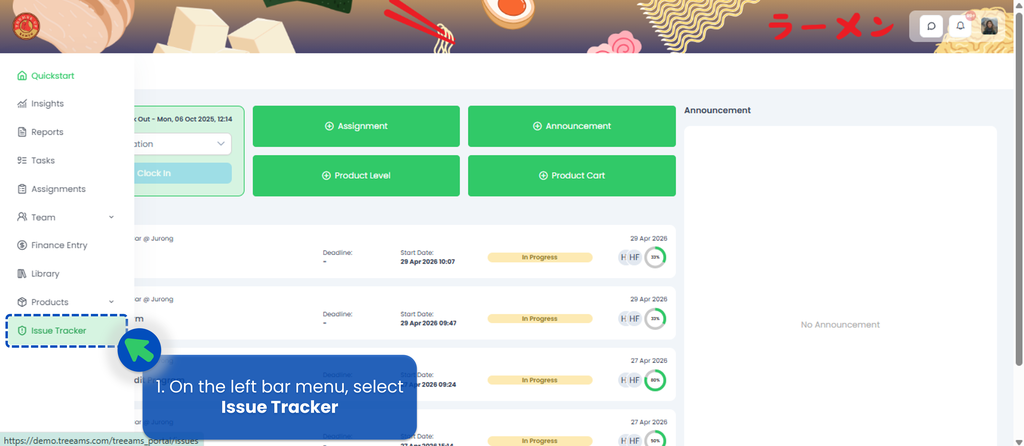
- After logging in, hover over the left bar menu from the Quickstart page and select Issue Tracker.
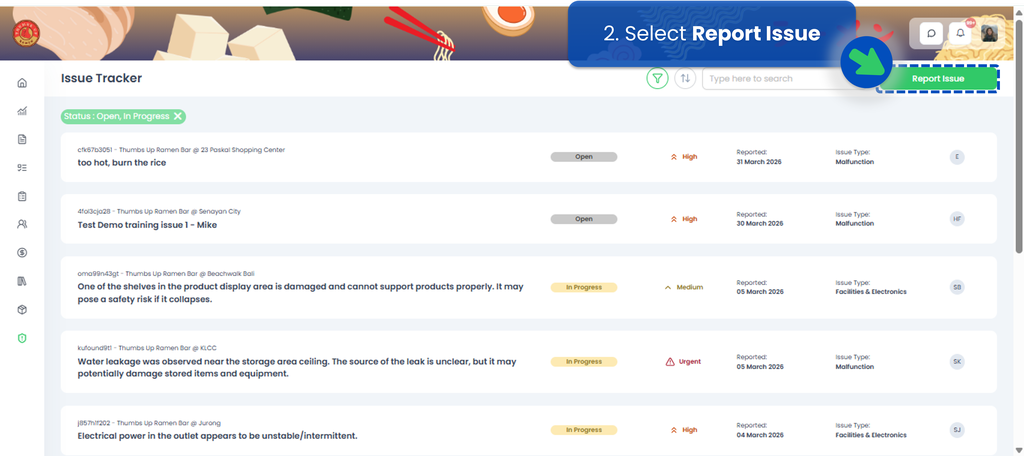
- Click the Report Issue button on the top right corner.
- Choose how you'd like to raise the issue:
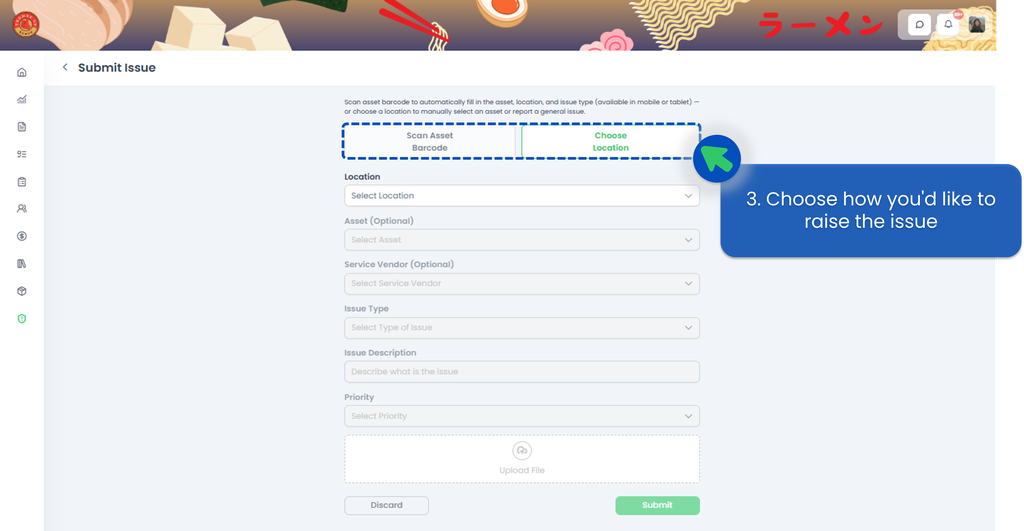
- Scan Asset Barcode — use your mobile phone or tablet to scan the asset's barcode directly.
- Choose Location — raise the issue manually if you don't have a barcode set up for the asset yet.
- Fill in the report form with the following details:
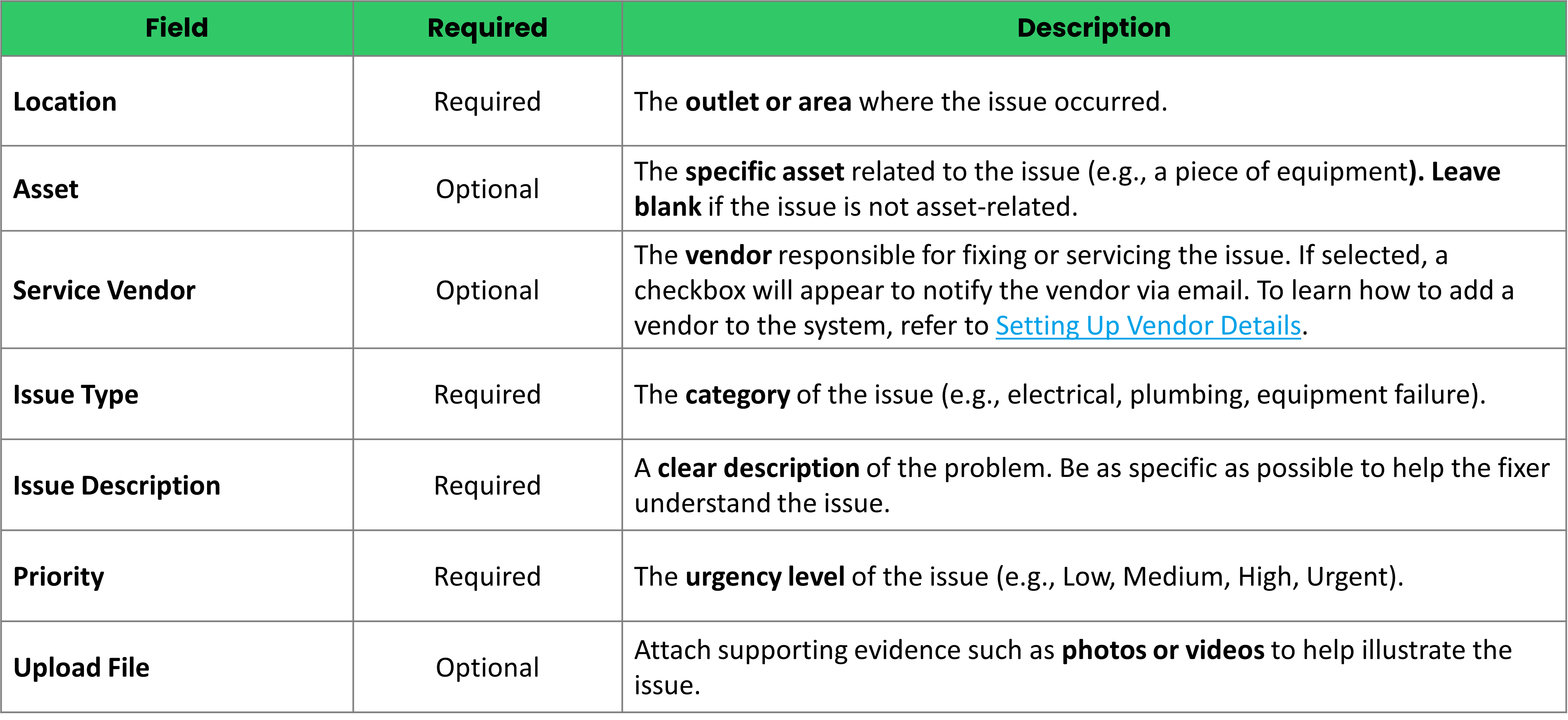 To learn how to add a vendor to the system, refer to Setting Up Vendor Details.
 - Once all required fields are filled in, click Submit to raise the ticket.
Issue Statuses
- Open: This is the default status when a new ticket is created by the Issue Raiser.
- In Progress: Means the issue is being worked on. This status can be set by the issue fixer team or a vendor registered in the system.
- Resolved: Set by the Issue Fixer or a vendor registered in the system, this status indicates that the issue has been addressed and is awaiting review and confirmation from the Issue Raiser.
- On Hold: Also set by the Issue Fixer or a vendor registered in the system, this status is used when the resolution is temporarily paused—typically due to pending actions or requirements.
- Closed: Only the Issue Raiser can mark an issue as closed after verifying that it has been fully resolved. If the same issue occurs again, the Issue Raiser can either reopen the ticket or submit a new one.