Logo
  • TreeAMS Website
    • TreeAMS Wiki
      • TreeAMS Wiki
    • FAQ
      • Getting Started & General Questions
      • Access, Login & Account Issues
      • Attendance & Timeclock FAQ
      • Insight, Dashboard & Reporting
      • Task, Assignment & Workflow
      • Issue Tracker & Insident Management
    • Getting Started
      • Setting Up Your Site
      • Desk vs Portal
      • Private vs Public Media Content
      • Customising Your TreeAMS Site
    • TreeAMS App
      • How to Add a TreeAMS Shortcut to Your Home Screen
    • Attendance
      • Attendance Feature
    • Insights
      • Introduction to TreeAMS Insights
      • How to Navigate TreeAMS Insights
    • Reports
      • Introduction to TreeAMS Reports
      • How to Use Reports in TreeAMS
    • Organisation
      • TreeAMS Organisation Introduction
      • Organisation Structure
      • Branch & Unit Details
      • Geolocation Setup
      • Address & Contact Setup
    • Legal Documents
      • Legal Dashboard Introduction
      • Legal Document Setup
      • Document Reminder
    • Documents
      • TreeAMS Drive Introduction
    • User
      • User Types
      • Adding & Disabling a User
      • Setting the Language in TreeAMS
    • Teams
      • Setting Up Teams
    • Content
      • TreeAMS Content Introduction
      • Content Types: Blocks vs Collections
      • Content Category
      • Content Permission
      • Content Block: Article
      • Content Block: Video
      • Content Block: Checklist
      • Content Block: Quiz
      • Content Block: Evaluation
      • Content Block: Audit
      • Content Block: Slides
      • Content Block: Workflow
      • Content Collection: Manual
      • Content Collection: Training Course
      • Content Collection: Audit Program
    • Products
      • TreeAMS Products Introduction
      • Adding a Supplier
      • Adding a Product
      • Creating a Product List
      • How to Use Product Cart
      • How to Use Product Order
      • How to Use Product Level
    • Assignment
      • Types of Task in TreeAMS
      • Add New Assignment
      • Assigning a Checklist
      • Assigning a Training
      • Assigning an Audit
      • Assigning a Workflow
      • Assigning a File Upload Task
      • Assigning a File Download Task
    • Finance Entry
      • Finance Entry Introduction
      • Finance Entry Setup
    • Conduct Assignments
      • Introduction, Library, Checklist & Training
      • Conduct Audit for Auditor
      • Conduct Audit for Assignee
      • Conduct a Checklist
      • Conduct a Training
      • Conduct a Workflow in TreeAMS
    • Issue Tracker
      • What is Issue Tracker?
      • Issue Dashboard Introduction
      • How to Use the Issue Tracker
      • Set Up Issue Tracker
    • πŸ“ Release Notes
      • February 2026
      • January 2026
      • December 2025
      • November 2025
      • October 2025
      • September 2025
      • August 2025
      • July 2025
      • June 2025
      • May 2025
      • April 2025
      • March 2025
      • February 2025
    Edit Sidebar
    Add Group
    View Sidebar
Review Changes

				
  • TreeAMS Wiki
    • TreeAMS Wiki
  • FAQ
    • Getting Started & General Questions
    • Access, Login & Account Issues
    • Attendance & Timeclock FAQ
    • Insight, Dashboard & Reporting
    • Task, Assignment & Workflow
    • Issue Tracker & Insident Management
  • Getting Started
    • Setting Up Your Site
    • Desk vs Portal
    • Private vs Public Media Content
    • Customising Your TreeAMS Site
  • TreeAMS App
    • How to Add a TreeAMS Shortcut to Your Home Screen
  • Attendance
    • Attendance Feature
  • Insights
    • Introduction to TreeAMS Insights
    • How to Navigate TreeAMS Insights
  • Reports
    • Introduction to TreeAMS Reports
    • How to Use Reports in TreeAMS
  • Organisation
    • TreeAMS Organisation Introduction
    • Organisation Structure
    • Branch & Unit Details
    • Geolocation Setup
    • Address & Contact Setup
  • Legal Documents
    • Legal Dashboard Introduction
    • Legal Document Setup
    • Document Reminder
  • Documents
    • TreeAMS Drive Introduction
  • User
    • User Types
    • Adding & Disabling a User
    • Setting the Language in TreeAMS
  • Teams
    • Setting Up Teams
  • Content
    • TreeAMS Content Introduction
    • Content Types: Blocks vs Collections
    • Content Category
    • Content Permission
    • Content Block: Article
    • Content Block: Video
    • Content Block: Checklist
    • Content Block: Quiz
    • Content Block: Evaluation
    • Content Block: Audit
    • Content Block: Slides
    • Content Block: Workflow
    • Content Collection: Manual
    • Content Collection: Training Course
    • Content Collection: Audit Program
  • Products
    • TreeAMS Products Introduction
    • Adding a Supplier
    • Adding a Product
    • Creating a Product List
    • How to Use Product Cart
    • How to Use Product Order
    • How to Use Product Level
  • Assignment
    • Types of Task in TreeAMS
    • Add New Assignment
    • Assigning a Checklist
    • Assigning a Training
    • Assigning an Audit
    • Assigning a Workflow
    • Assigning a File Upload Task
    • Assigning a File Download Task
  • Finance Entry
    • Finance Entry Introduction
    • Finance Entry Setup
  • Conduct Assignments
    • Introduction, Library, Checklist & Training
    • Conduct Audit for Auditor
    • Conduct Audit for Assignee
    • Conduct a Checklist
    • Conduct a Training
    • Conduct a Workflow in TreeAMS
  • Issue Tracker
    • What is Issue Tracker?
    • Issue Dashboard Introduction
    • How to Use the Issue Tracker
    • Set Up Issue Tracker
  • πŸ“ Release Notes
    • February 2026
    • January 2026
    • December 2025
    • November 2025
    • October 2025
    • September 2025
    • August 2025
    • July 2025
    • June 2025
    • May 2025
    • April 2025
    • March 2025
    • February 2025
Edit Sidebar
Add Group
View Sidebar
This space has {{ pending_patches_count }} change(s) pending for review.

Legal Document Setup

On TreeAMS, you can store multiple documents into each organisation and get reminders when you need to get notified on expiring documents!

This section covers:

  1. How to Access the Legal Documents
  2. Document Types vs Document Sub Types
  3. How to Create a New Legal Document

How to Access Legal Documents

You can access all legal documents assigned to your organization through the Organisatio menu or Legal Documents menu.

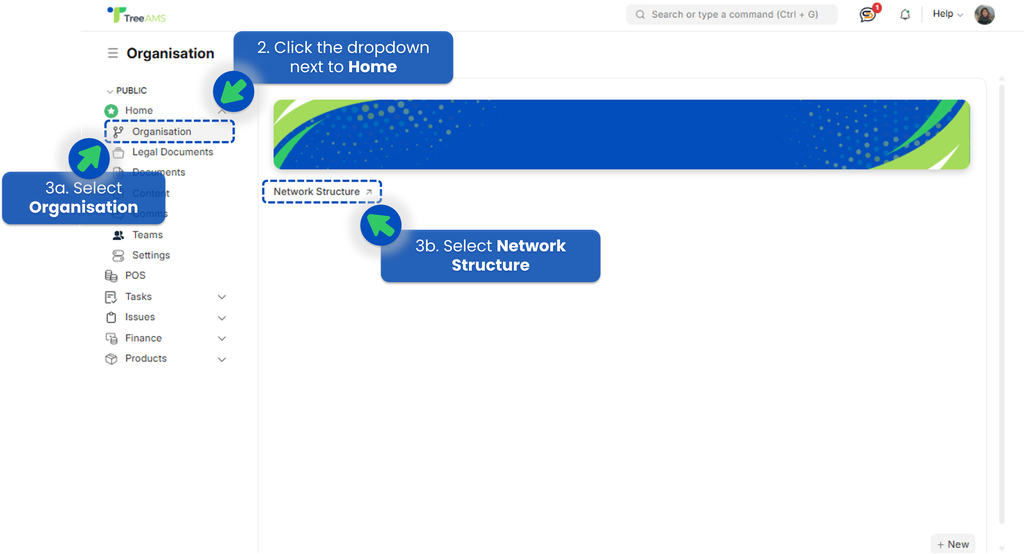
  1. Go to Desk. Learn how you can switch to Desk here!
  2. Click the dropdown next to Home menu.
  3. Select Organisation -> Network Structure.
  4. Hover over the branch/unit you would like to see, click edit.
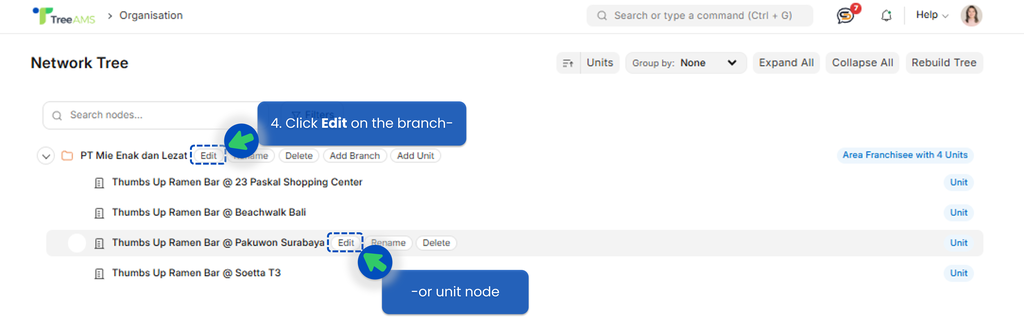
  5. Navigate to Legal Documents Tab to view all documents related to the selected unit or location. Click the file name to open the related legal document settings.

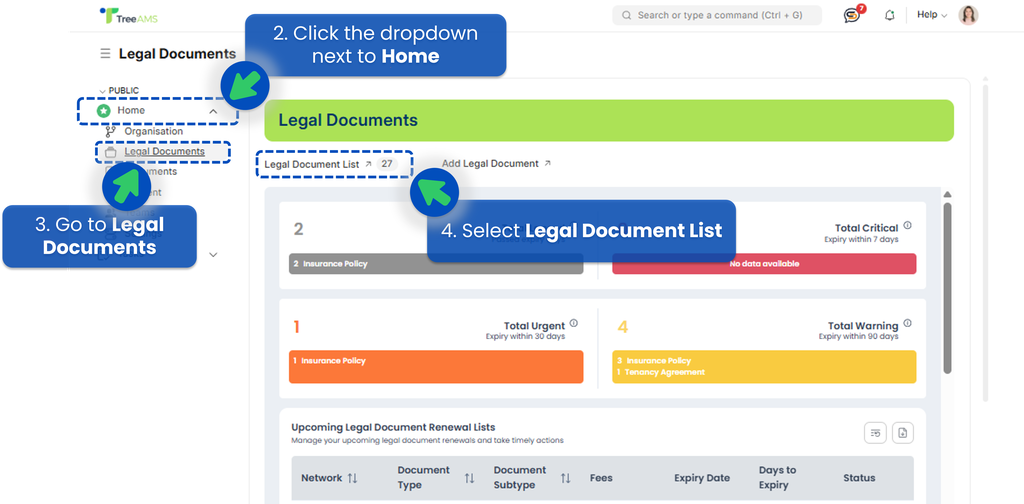
In other way, here is how you can access it from Legal Documents menu:

  1. Still on Desk.
  2. Click the dropdown next to the Home menu.
  3. Select Legal Documents.
  4. Select Legal Document Lists.
  5. Use filters or search to find the specific ID, Document Type, or Location.
  6. Click the document to view details related to the selected unit or location.

Document Types vs Document Sub Types

In TreeAMS, legal documents are organised using two levels of classification: Document Types and Document Sub Types. Both serve different purposes and have different permission rules.

Document Types

πŸ‘‰ The main category of a legal document.
Examples:

  • Franchise Agreement
  • Lease Agreement
  • Halal Certificate
  • Business Licence

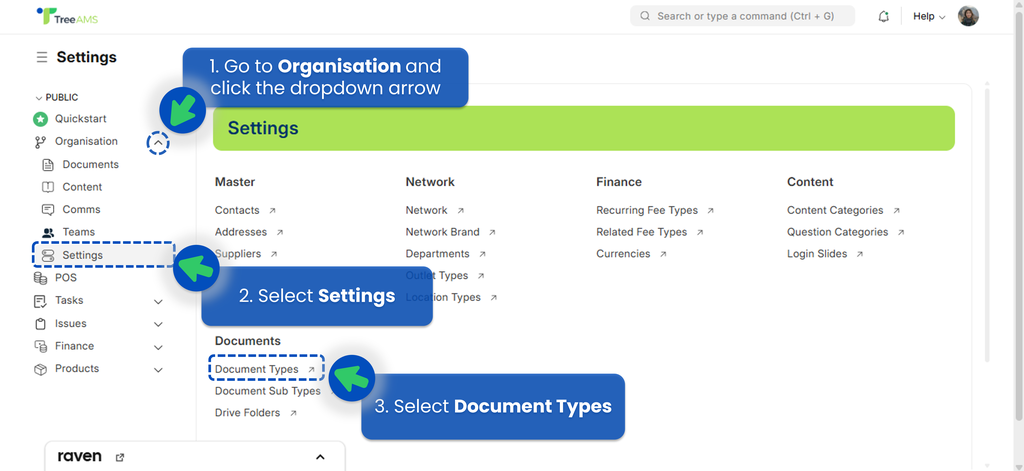
Document Types help group documents based on their overall purpose, making it easier to filter and manage records across the organisation. Here is how to access Document Types:

  1. On the Desk site then click the dropdown next to Organisation
  2. Select Settings
  3. Select Document Types
Permissions (Important):
  • Users cannot create new Document Types unless they have administrator permissions.
  • This restriction ensures consistency and standardisation across the organisation.
  • If you believe a new Document Type should be added and is commonly used, please inform your TreeAMS Administrator.

Document Sub Type

πŸ‘‰ The specific variant or classification within a document type.
Examples:

  • Renewal
  • Addendum
  • Termination
  • Amendment
  • Extension

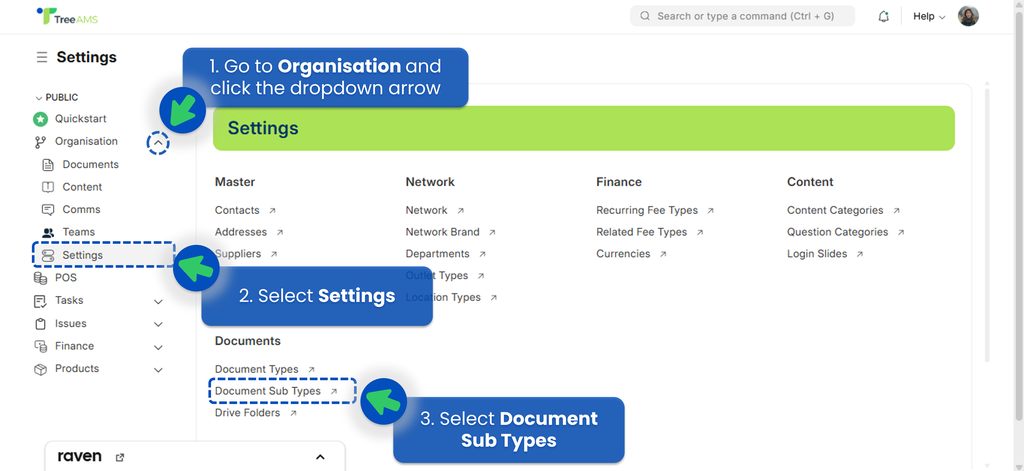
Sub Types allow you to add more detail and nuance to the document, helping track different versions or scenarios of the same main document category. Here is how to access Document Sub Types:

  1. On the Desk site then click the dropdown next to Organisation
  2. Select Settings
  3. Select Document Sub Types
Permissions: πŸ›ˆ
  • Users are allowed to add new Document Sub Types freely.
  • You can create as many sub types as needed to match your organisation’s processes.

Creating a New Legal Document

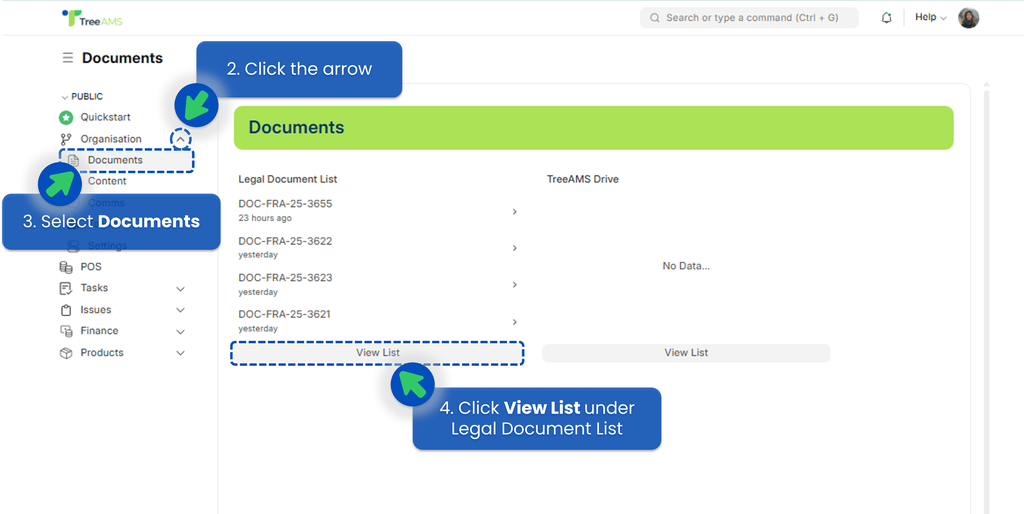
  1. Go to Desk. Learn how you can switch to Desk here!
  2. Click the dropdown next to Home menu.
  3. Select Documents.
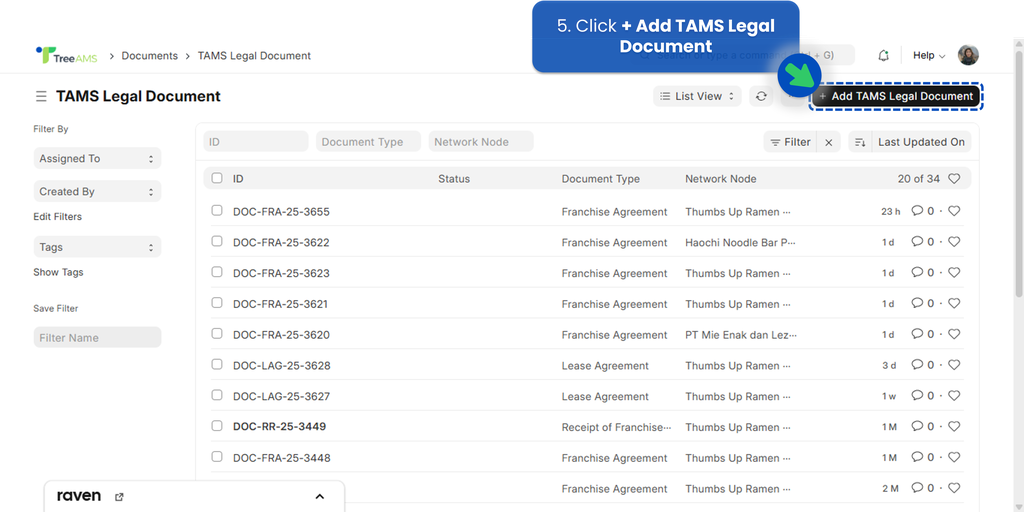
  4. Click View List under the Legal Document List section.

  5. Click + Add TAMS Legal Document to upload a new document or click on any row to open the document details.

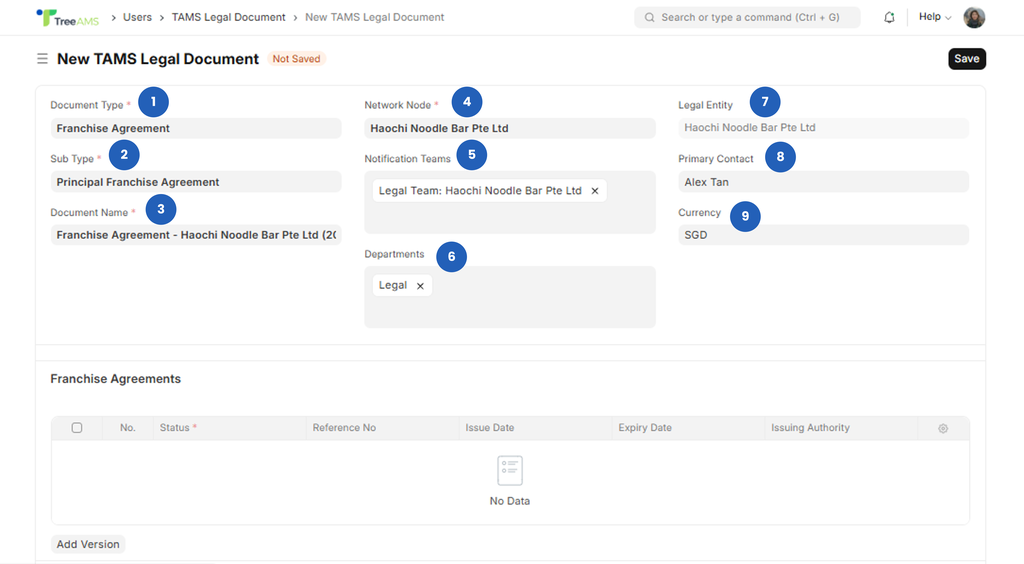
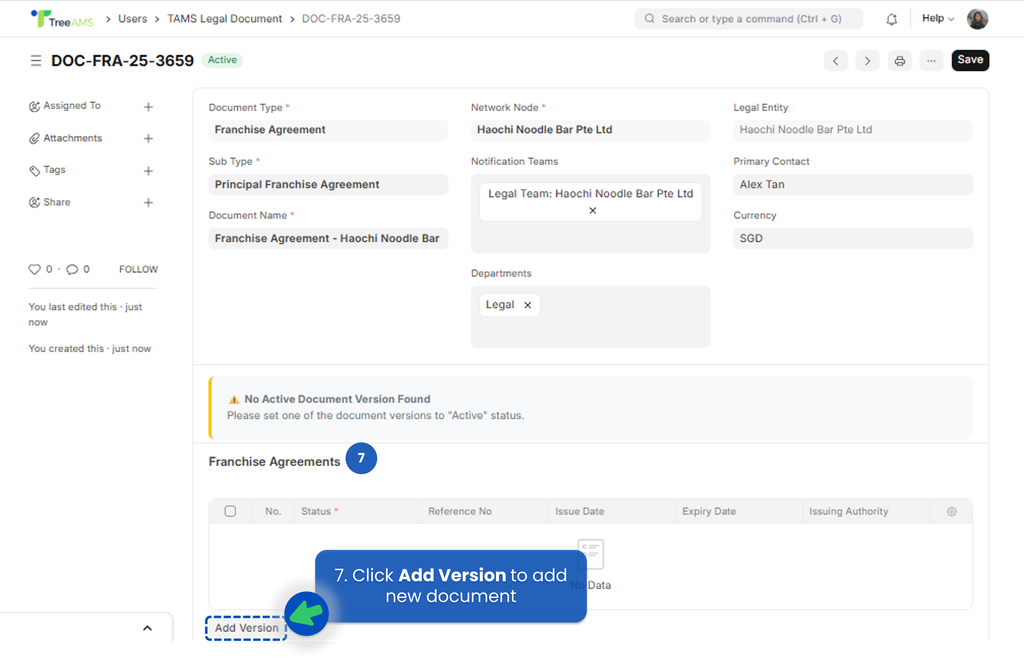
  6. Complete the document's information!
    1. Document Type πŸ‘‰ Select the main category of the legal document (e.g., Franchise Agreement, Lease Agreement, Business Licence).
    2. Sub Type πŸ‘‰ Choose the specific classification within the document type (e.g., Renewal, Addendum, Termination). Helps organise and filter documents more accurately.
    3. Document Name πŸ‘‰ Enter the full name or title of the document. Example: Thumbs Up – Franchise Agreement 2025.
    4. Network Node πŸ‘‰ Select the Branch or Unit that this document belongs to. This determines where the document appears in your Organisation Structure.
    5. Notification Teams πŸ‘‰ Choose which teams should receive reminders or notifications related to this document (e.g., Document Review, Legal, Operations Team).
    6. Departments πŸ‘‰ Select relevant internal departments that should be linked to or informed about this document (e.g., Finance, Legal, Operations).
    7. Legal Entity πŸ‘‰ Auto-filled based on your Organisation settings. This ensures the document is tied to the correct legal owner.
    8. Primary Contact πŸ‘‰ The main contact person associated with this document. Used for communication, order-related matters, and coordination with suppliers or partners.
    9. Currency πŸ‘‰ The currency used for this document (e.g., SGD, MYR, IDR). Auto-filled based on your Organisation settings.
    10. After filling in all required fields, click Save.
  7. Next, let's add the document!
    Under Franchise Agreements section, click Add Version. The name of this section adapts based on the Document Type you selectedβ€”for example, β€œFranchise Agreement”.
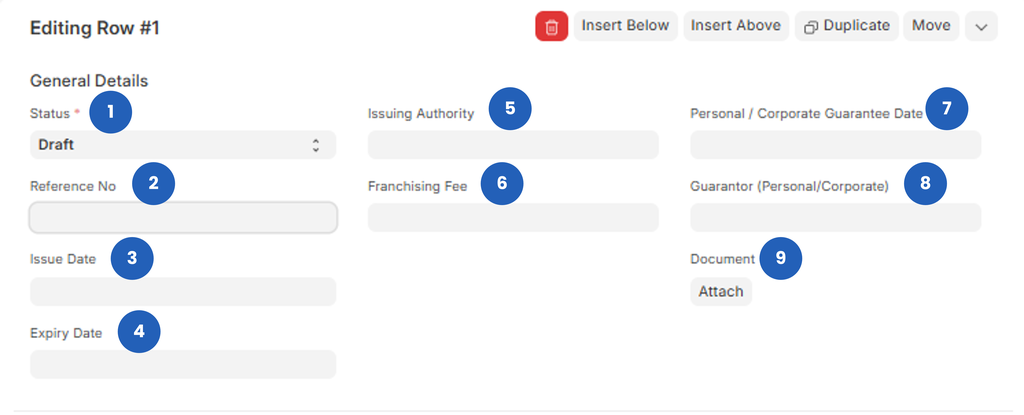
  8. Complete the document details. Most fields are optional, but it's highly recommended to fill them in for better tracking and document management.
    • General Details

      1. Status πŸ‘‰ The current status of this document version (e.g., Draft, Active, Expired).
        • Draft: The document is still being prepared and not yet finalised.
        • Active: The document is current, approved, and in use.
        • Expired: The document is no longer valid and may need to be updated or replaced.
        Note: Uploading a file is optional. However, each legal document entry in TreeAMS must contain at least one Active document before it can be activated for a location. Once you set a document version to Active, the legal document entry will be saved automatically and will appear under the relevant location.
      2. Reference No πŸ‘‰ The official reference number of the document (if available). Example: FA-2025-THUMBSUP-01
      3. Issue Date πŸ‘‰ The official date the document was issued or signed.
      4. Expiry Date πŸ‘‰ The end date of the agreement or document validity. This field triggers reminders if Document Reminder is enabled.
      5. Issuing Authority πŸ‘‰ The organization or authority that issued or approved this document.
      6. Franchising Fee πŸ‘‰ Enter the fee amount stated in the agreement (if applicable).
      7. Personal / Corporate Guarantee Date πŸ‘‰ The date the personal or corporate guarantee was signed (if required for franchise agreements).
      8. Guarantor (Personal/Corporate) πŸ‘‰ Name of the guarantor responsible for the agreement, either an individual or a corporation.
      9. Document πŸ‘‰ Click Attach to upload the actual document file (PDF, image, or scanned copy).
      10. Issuing Authority: The person, team, or department responsible for creating and approving the document.
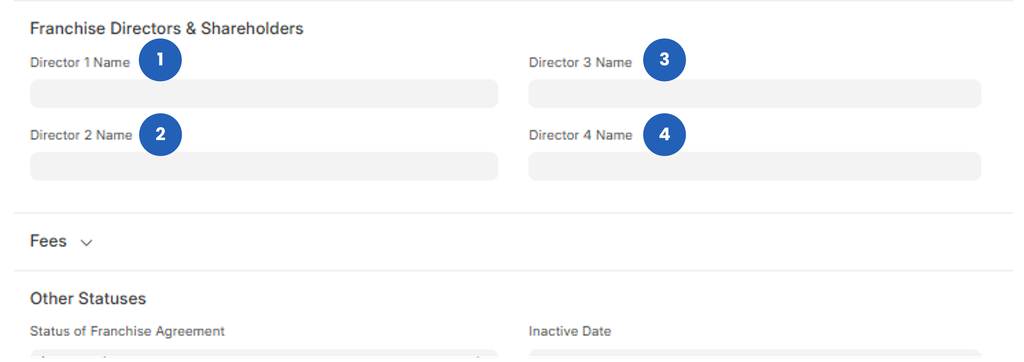
    • Franchise Directors & Shareholders

      1. Director 1 Name πŸ‘‰ Enter the full name of the first director.
      2. Director 2 Name πŸ‘‰ Enter the second director’s name (optional if not applicable).
      3. Director 3 Name πŸ‘‰ Enter the third director’s name (if applicable).
      4. Director 4 Name πŸ‘‰ Enter the fourth director’s name (if applicable).
    • Fees

      1. Inventory Deposit πŸ‘‰ The deposit paid for initial stock or inventory setup.
      2. Security Deposit πŸ‘‰ The required security deposit for the agreement.
      3. Top Up πŸ‘‰ Additional deposit or top-up amount required for operational needs.
      4. Training Fee πŸ‘‰ The fee charged for training sessions provided to the franchisee or operational team.
      5. Relocation Fee πŸ‘‰ The fee charged when relocating a unit/outlet to a new site.
      6. Technical Support Fee πŸ‘‰ The fee for ongoing technical support as per the contract.
      7. Royalty πŸ‘‰ The royalty amount payable by the franchisee as stated in the agreement.
      8. Advertising and Promotion Fee πŸ‘‰ The fee allocated for brand marketing and promotional activities.
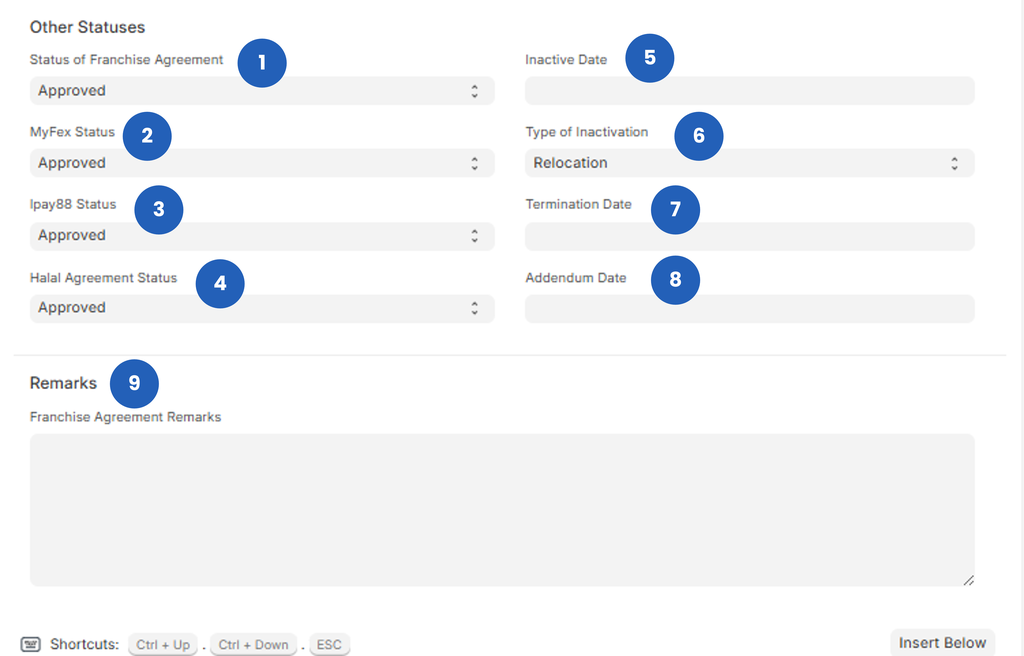
    • Other Statuses.
      This section is used to capture additional statuses related to the legal document or operational requirements.

      1. Status of Franchise Agreement πŸ‘‰ Indicates the approval or current status of the franchise agreement (e.g., Approved, Pending)
      2. MyFex Status πŸ‘‰ The status for MyFex (if your brand uses it for franchise registration or reporting)
      3. Ipay88 Status πŸ‘‰ The onboarding or verification status for iPay88 payment services
      4. Halal Agreement Status πŸ‘‰ The approval status of the halal certification or halal agreement (if applicable)
      5. Inactive Date πŸ‘‰ The date the document or agreement becomes inactive
      6. Type of Inactivation πŸ‘‰ The reason for inactivation, such as Relocation, Closed, or Terminated
      7. Termination Date πŸ‘‰ The official date the agreement was terminated
      8. Addendum Date πŸ‘‰ The date an addendum or amendment to the main document was issued
      9. Remarks πŸ‘‰ Additional notes or important information related to the agreement. Use this section to store internal comments, context, or any relevant remarks.
  9. You have added a document to your organisation successfully!
    To see it from your organisation structure, refer to: here!

If you need assistance, please email us at connect@treeams.com . We are happy to help! πŸ‘‹πŸ˜Š

Legal Document Setup
elsa@astreem.com edited 1 year ago

No Revisions

Page Settings
legal-document-setup/
Discard
Save
Toggle Dropdown
Draft
Title
Enter title for the new Wiki Group

Previous Page

Left

Next Page

Right

On this page

  • Legal Document Setup
  • How to Access Legal Documents
  • Document Types vs Document Sub Types
  • Document Types
  • Document Sub Type
  • Creating a New Legal Document
  • If you need assistance, please email us at connect@treeams.com . We are happy to help! πŸ‘‹πŸ˜Š
Review Changes ← Back to Content
Message Status Space Raised By Last update on