Assigning a Training
This section covers:
- Creating a Training Assignment
- Assigning a Training
- Assigning a Trainer-led Training
- Schedule a Training
- Delegate a Training
Creating a Training Assignment
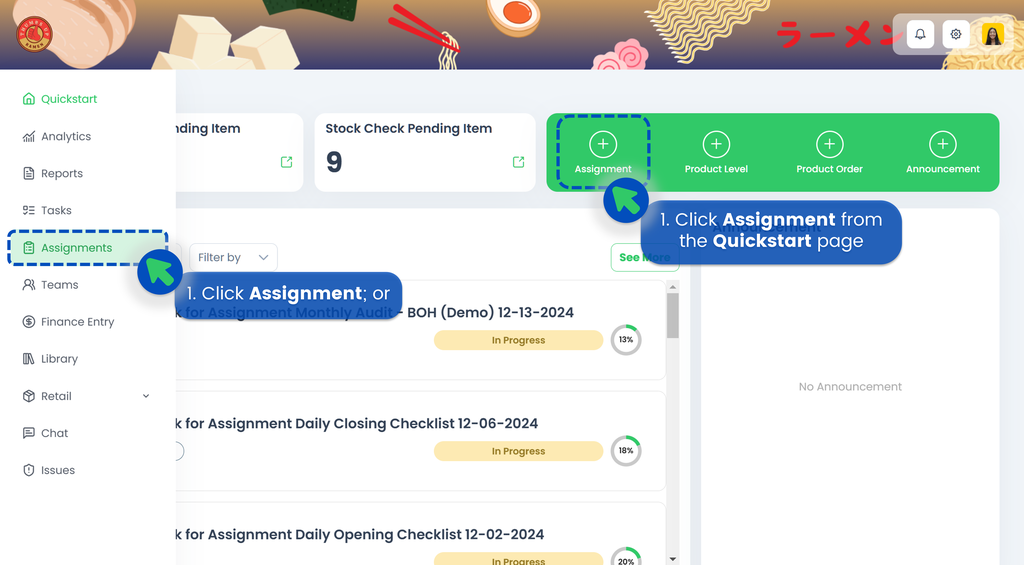
- From the Portal, click Assignments. You can find Assignments from the left panel menu or from the Quickstart page.
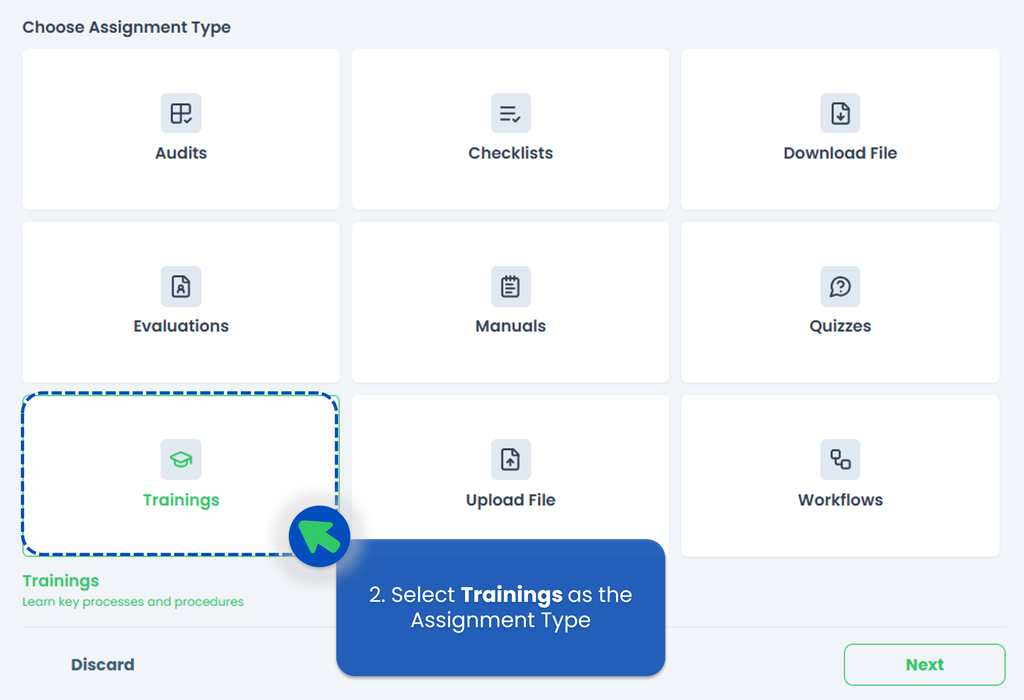
- Select the Assignment Type. Since this is a Training Assignment, you only allow User Assignments Type because the Training must be assigned to specific individuals to ensure proper tracking and completion.
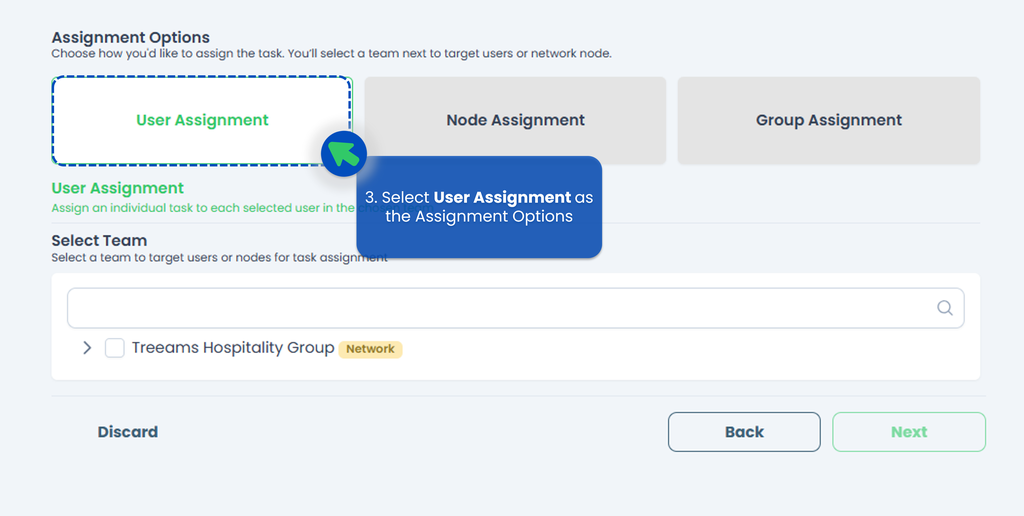
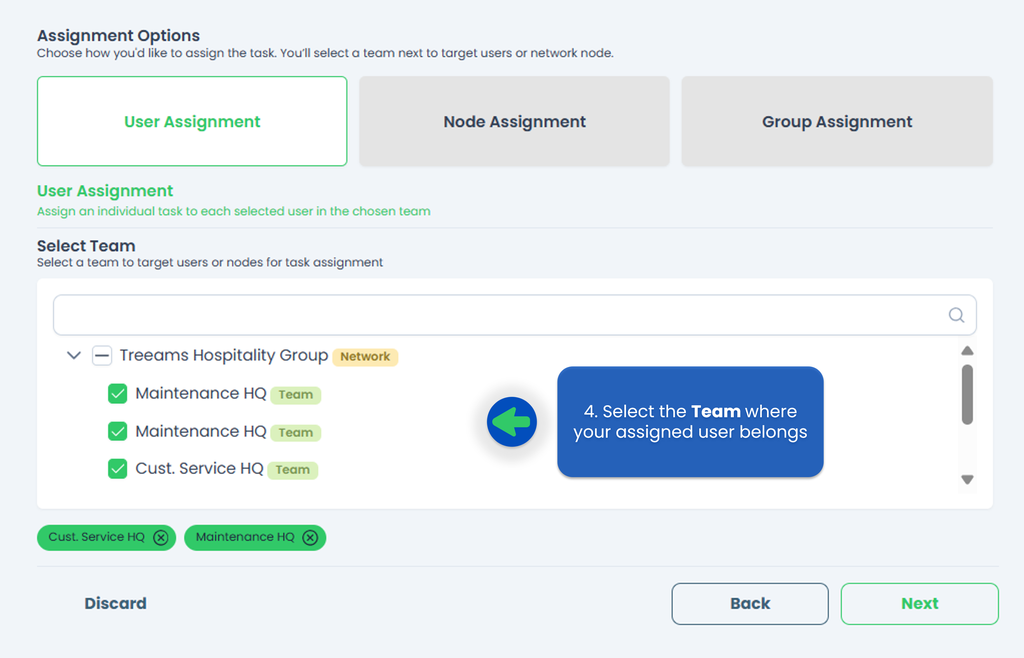
- Select the Team where the person responsible for the assignment belongs (for example your front staff, kitchen staff, and so on), then click Next. This step is connected to the final part, where you’ll assign to the appropriate person. You may select more than one person, but the task must be completed individually by each of them.
- Select the Training you'd like to assign. If you haven't created any Training, refer to How to create a Training to start creating or adding your Training!
This is optional but you can rename your Training!
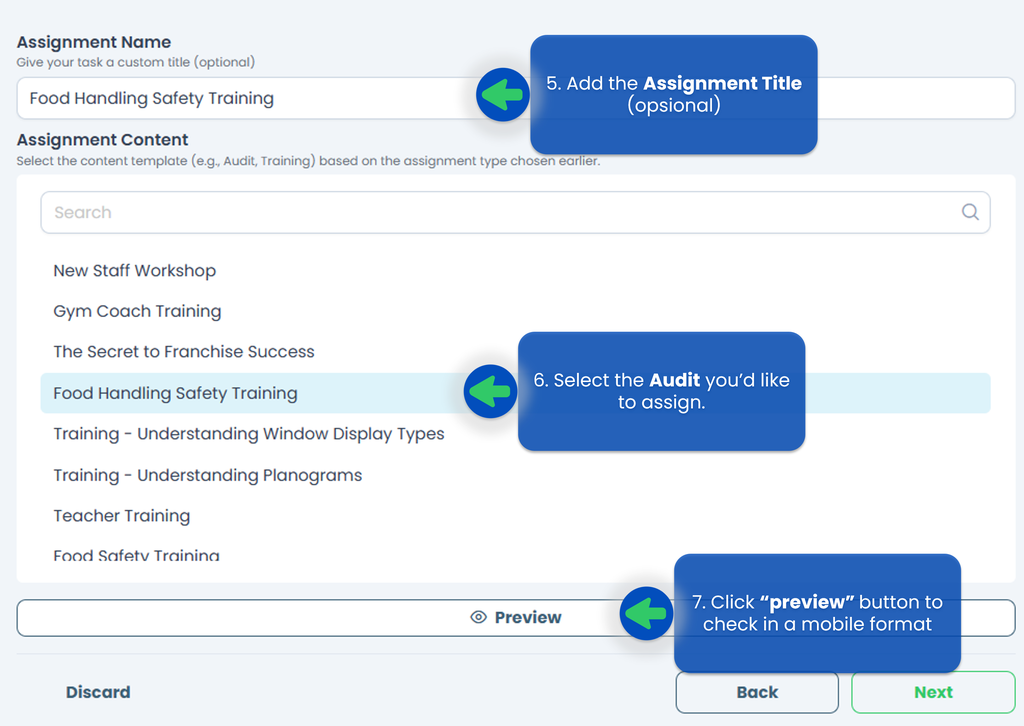 You can also click Preview button to ensure you've selected the correct Training Program, then click Next.
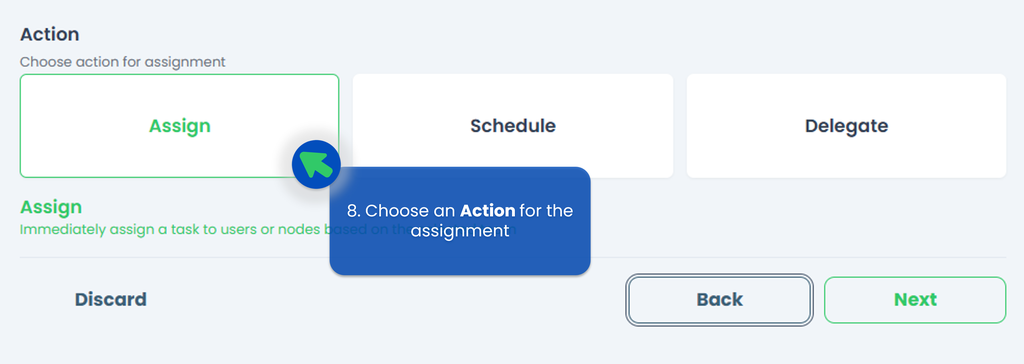
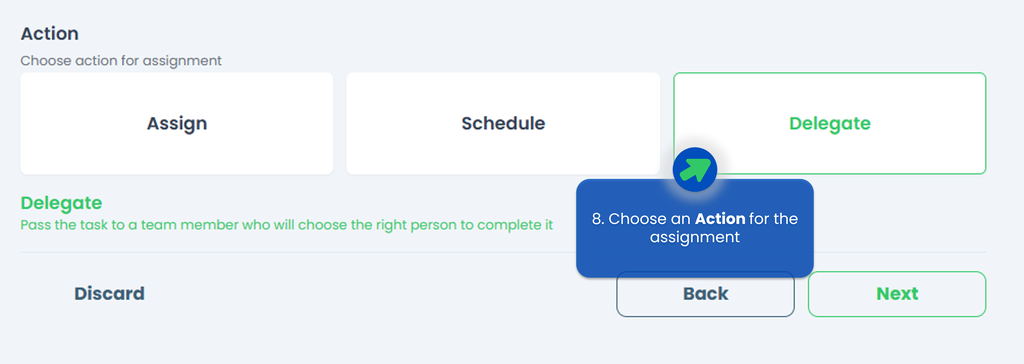
 - Select an Action for how and when the Training will be assigned to the selected user(s), then click Next. If your Training needs to occur repetitively, especially in operational, compliance, or customer-facing roles, you can also select "Schedule" so the assignment will be repeat daily, mothly, or even yearly, and you don’t have to create them manually.
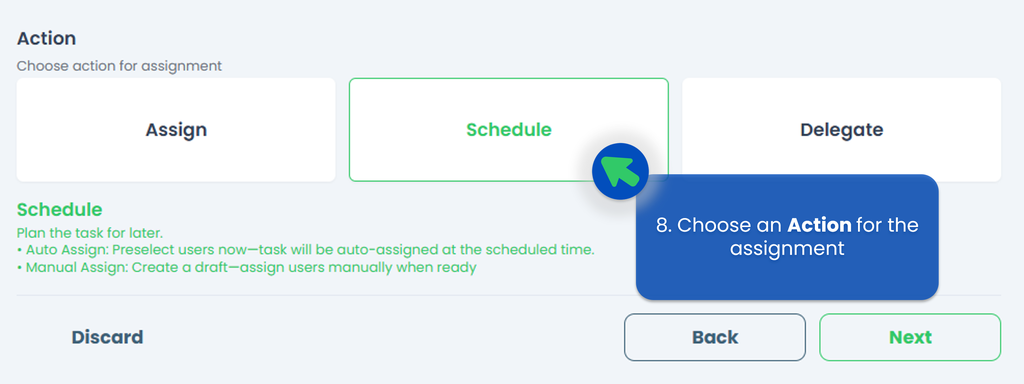 Here is the explaination of each action, you can also refer to Assignment Action Taken for detail.
- Assign Action 👉 You can directly send the Training Program at that time to the person responsible for it. If you're unsure who the appropriate person in charge is but know someone who can identify them, consider using the Delegate feature.
- Delegate Action 👉 instead of directly assigning the Training Program, you have the option to delegate it. This feature is especially helpful when you're unsure who is responsible for conducting the Training Program but know someone who can appoint the appropriate person.
- Schedule Action 👉 create a schedule to assign in a regular frequency within a specific timeframe.
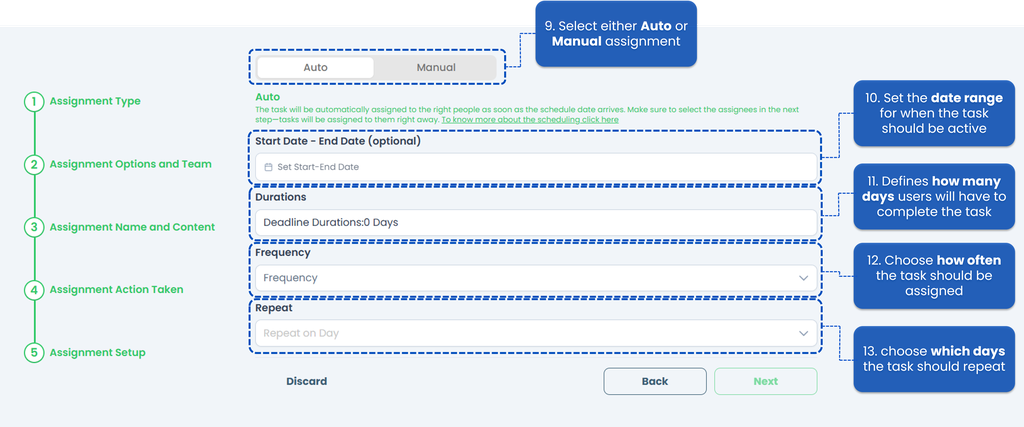
- Fill up the Assignment Setup section. Set when will the Training Program be ready to work on, how many days should the Training Program be completed in, and how often the Training Program should be assigned, then click Next. Refer to Assignment Setup for option detail.
- Select the person responsible for the Training Program, this person must be linked to the team or location selected in the previous step.
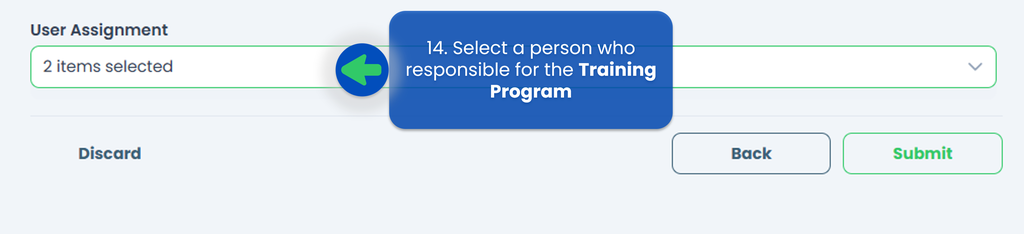
This is the final step of create the Checklist assignment, so make sure everything is good before clicking Submit.
 Select "Trainings" as the Assignment Type, then click Next.
Assigning a Training
- Click Assign Task to directly assign to user(s)
- This is optional, but you can set a deadline for the task assignment
- In the 'Select Assignee' field, select the user(s) you want to assign this training to
- Click Submit and the Training Program will be assigned to the selected user(s)
Assigning a Trainer-led Training
In TreeAMS, you are able to assign a training program to a Trainer and allow them to conduct on-the-job trainings with multiple participants. You can see how to creat Trainer-Led How to Creat and Edit a Trainer Course point 8, then make sure the Trainer-Led is enable.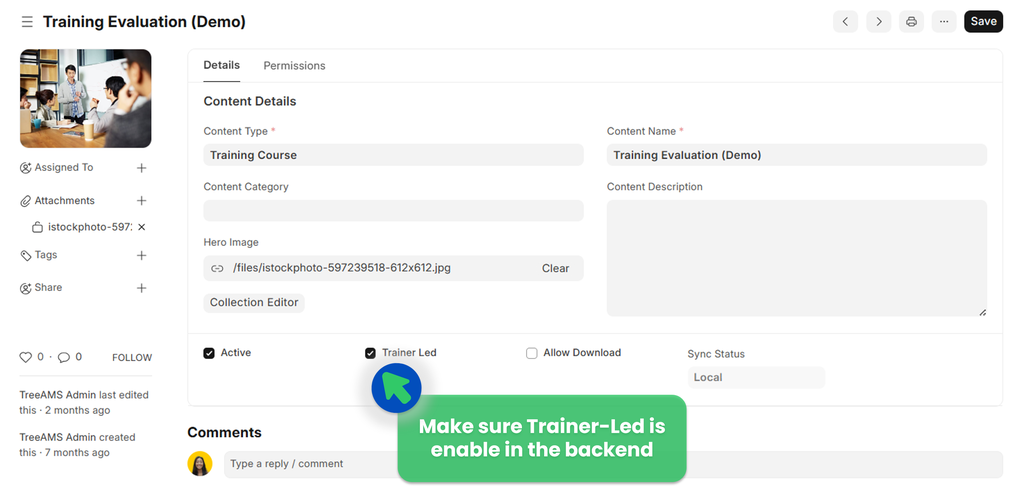 In a trainer-led training, the Trainer is able to use the platform to show training materials, record trainee attendance, as well as evaluate trainee performance. The steps are similar to assigning usual training, with a few different steps as explained below.
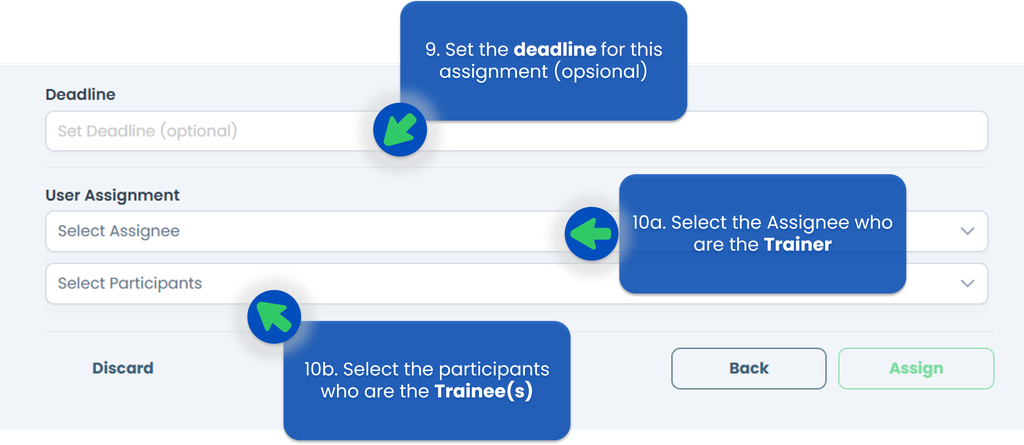
- Choose Participants. Participants are Trainee(s) that will join in the training session. The selected user(s) will be object to attendance taking and evaluation by the Trainer.
- You can continue to the next step as usual. But remember, selecting the Assignee here is selecting the Trainer(s) that will be conducting the Trainer-led training.
- Click Assign to assign the training to the selected Trainer(s)
Schedule a Training
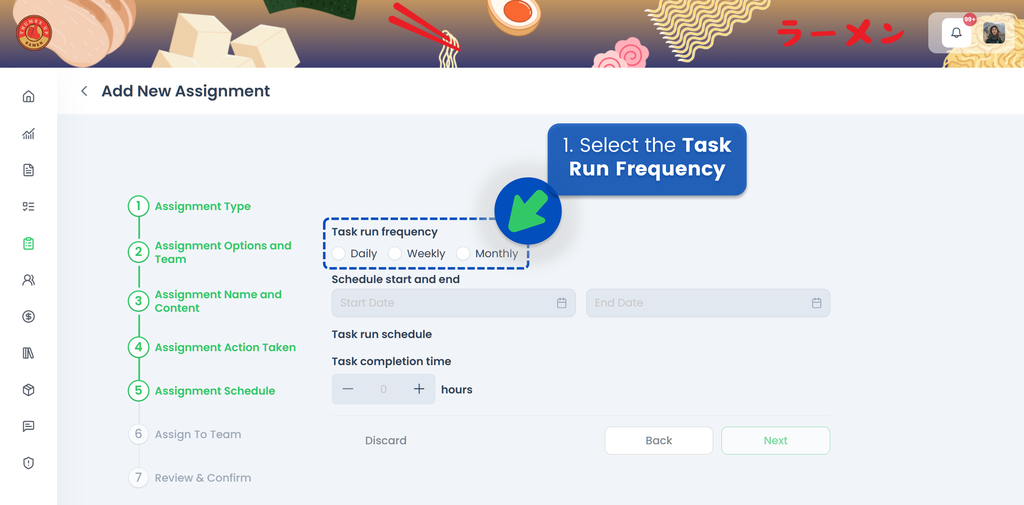
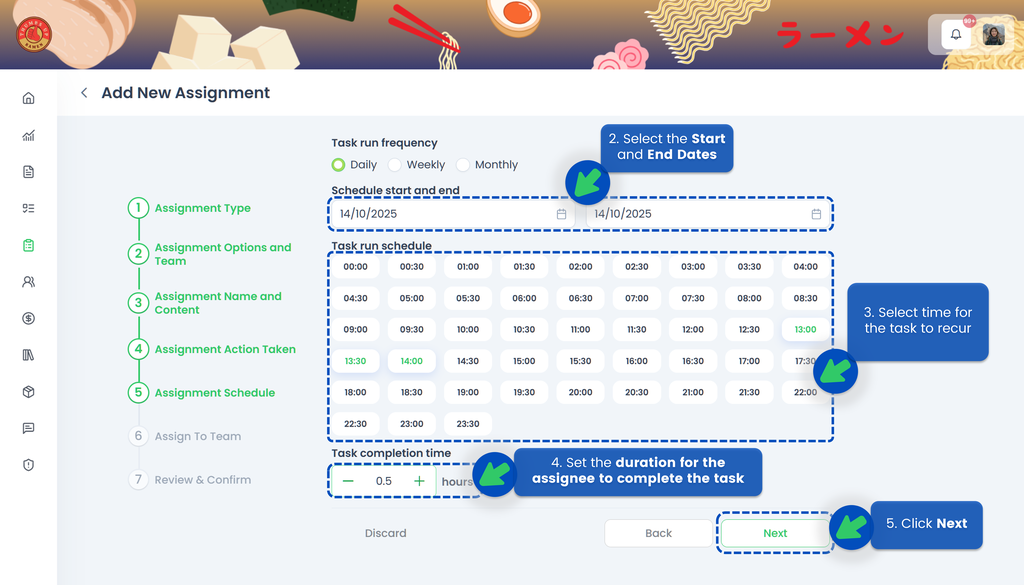
If you choose to Schedule your training course, the next step is to select the Task Run Frequency, whether it's Daily, Weekly, or Monthly.
🟢 Daily
- Select Daily for ther Task Run Frequency
- Select the Start Date and the End Date of the assignment so the system knows when the task should become active and when it should end
- Select time for the task to recur
- Set the duration for the assignee to complete the task. If the assignee misses the deadline, the task will be automatically closed, and the system will indicate that the task was not completed on time
- Click Next
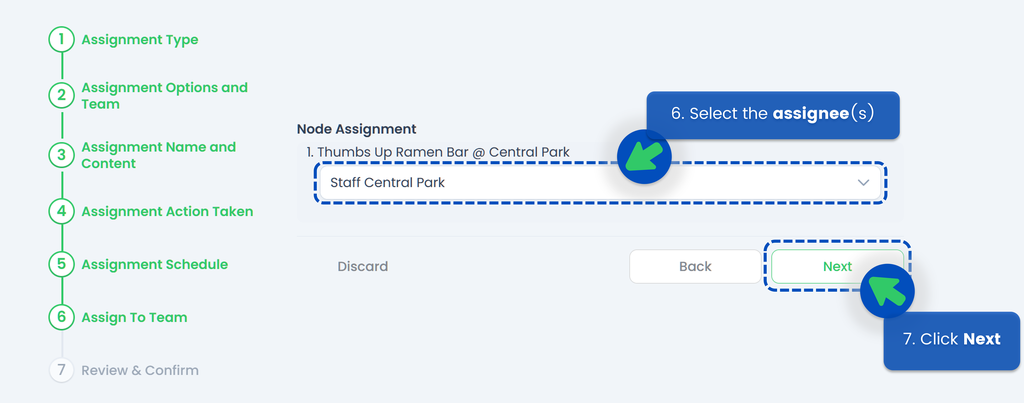
- Select the assignee(s)
- Click Next
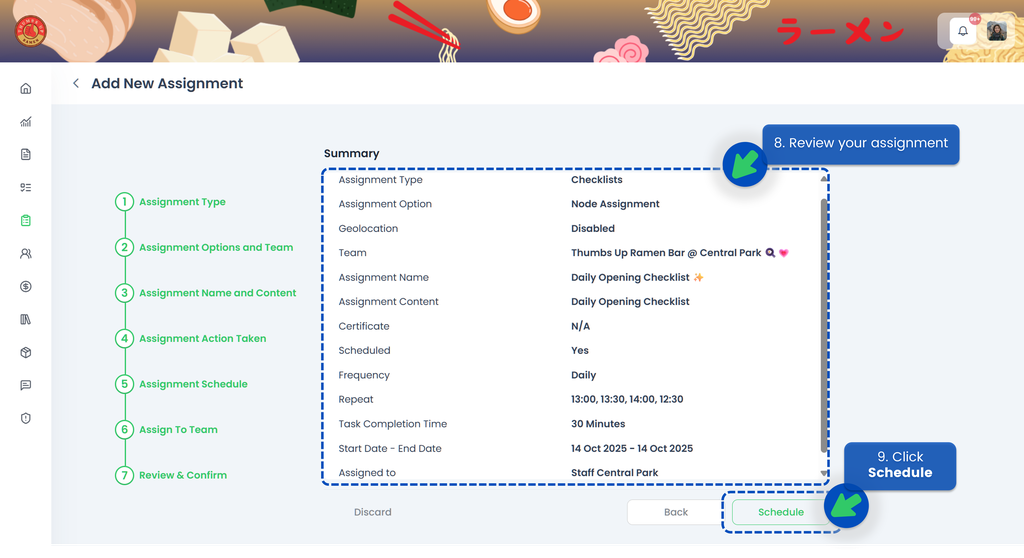
- Review your assignment. Make sure you’ve selected the correct start and end dates, timings, and assignee
- Click Schedule
🟢 Weekly
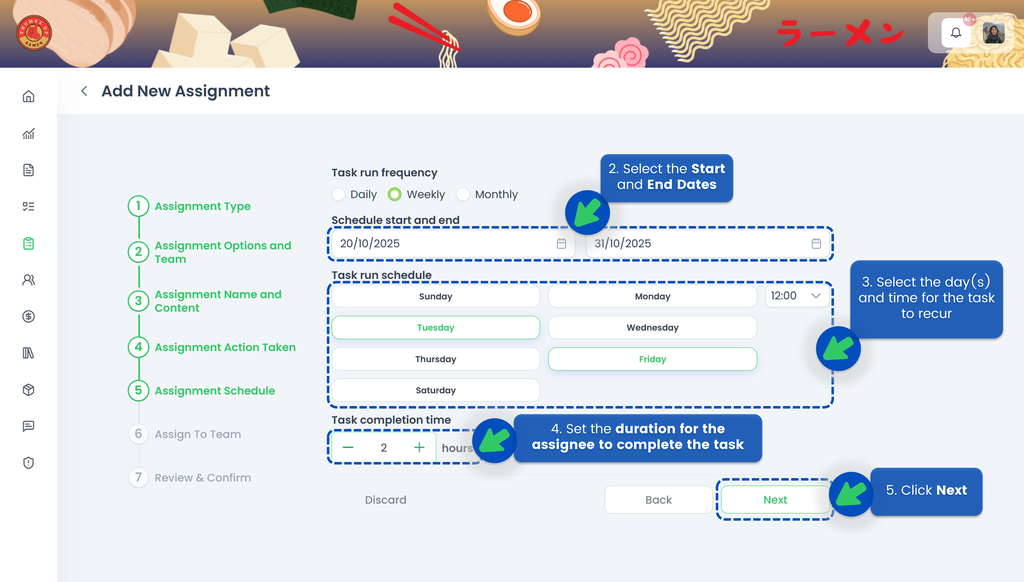
- Select Weekly for ther Task Run Frequency
- Select the Start Date and the End Date of the assignment so the system knows when the task should become active and when it should end
- Select the day(s) and time for the task to recur
- Set the duration for the assignee to complete the task. If the assignee misses the deadline, the task will be automatically closed, and the system will indicate that the task was not completed on time
- Click Next
- Select the assignee(s)
- Click Next
- Review your assignment. Make sure you’ve selected the correct start and end dates, timings, and assignee
- Click Schedule
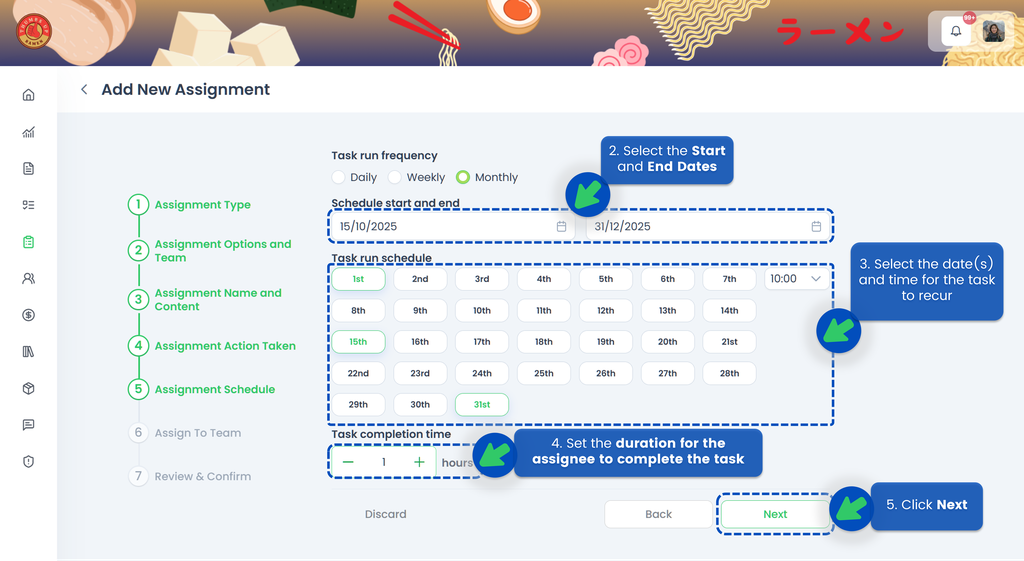
🟢 Monthly
- Select Monthly for ther Task Run Frequency
- Select the Start Date and the End Date of the assignment so the system knows when the task should become active and when it should end
- Select the date(s) and time for the task to recur
- Set the duration for the assignee to complete the task. If the assignee misses the deadline, the task will be automatically closed, and the system will indicate that the task was not completed on time
- Click Next
- Select the assignee(s)
- Click Next
- Review your assignment. Make sure you’ve selected the correct start and end dates, timings, and assignee
- Click Schedule
💡 If a month does not have 31 days, the task will be created on the last day of that month. For example, if a task is scheduled to recur on the 31st of each month, the task for February will be created on the 28th.
Delegate a Training
- In step 8, if you choose the Delegate action, you will be able to send the Training Program at that time to someone who can appoint the appropriate person (in case you don't know the auditor or the person responsible for it, you can delegate to the Manager of the store for example).
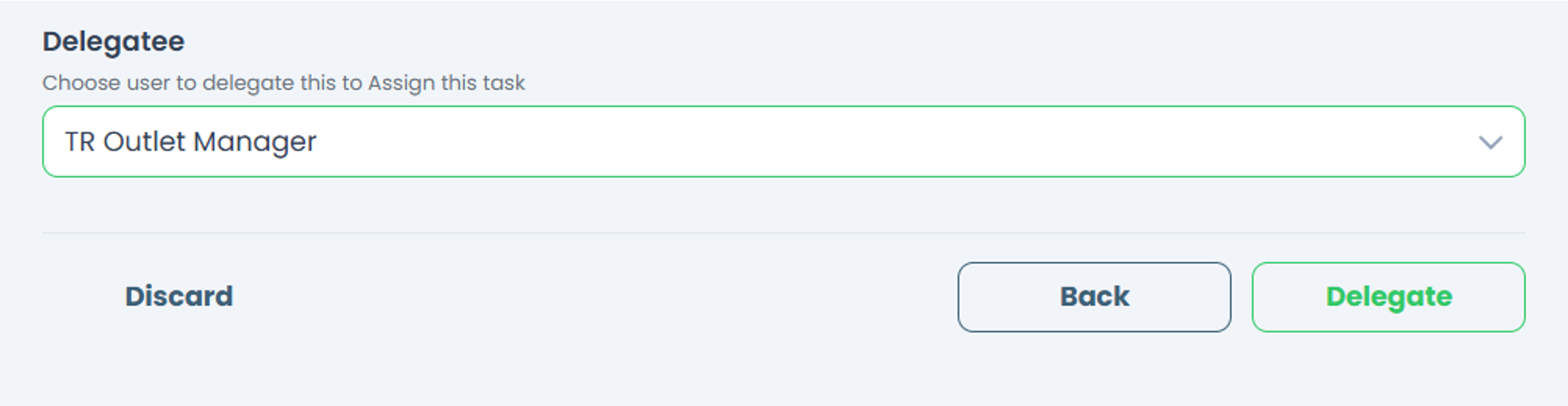
 Note: you can only delegate one user for each assignment.
 - IMPORTANT‼️ The Delegatee's role must be either a Site Admin or a Site User (with TreeAMS Assignment Manager as the sub-role). Remember! A Portal User cannot assign tasks as they are only allowed to do tasks.
- Click Delegate.
- Your Training Program has been successfully delegated!