Finance Entry
What is Finance Entry in TreeAMS?
Finance Entry is a module in TreeAMS used to record and manage monthly financial data for each unit or across the franchise network. It captures key figures such as revenue and other financial components, either automatically from POS integration or manually entered, depending on your setup.
The data submitted through Finance Entry becomes the foundation for Financial Analytics, enabling structured and consistent financial reporting.
Why Use the Finance Entry Module?
Using the Finance Entry module helps you:
- Centralize financial data: Store all unit and franchise financial records in one standardized system.
- Reduce manual errors: Automatically calculate fields based on predefined values or percentages.
- Support POS integration: Retrieve revenue data directly from POS systems when integrated.
- Enable financial analytics: Generate insights through Unit Finance and Franchise Finance analytics.
- Improve decision-making: Compare performance across units, months, and the entire network with consistent data.
How Finance Entry Data Is Used
Finance Entry data is automatically processed to generate Financial Analytics, which can be accessed under:
- Business Unit View
- Shows revenue and financial performance at the group/company level aggregated across all brands and corporate-owned outlets.
- Data rolls up from individual outlets to the group level and includes product sales, recurring fees, and total expenses.
- Franchisee View
- Shows revenue and financial performance of franchisee-owned units within a selected period, including franchise-related fees (e.g., training, equipment) and product sales ordered by franchisees from HQ or vendors.
This allows stakeholders to monitor trends, evaluate performance, and make data-driven business decisions.
How to Create a Finance Entry (Portal)
Once the Finance setup is complete, Finance Entry is ready to use in the Portal.
Accessing Finance Entry
- Go to the Portal. Learn how you can switch to Portal here!
- From the sidebar menu, select Finance Entry.
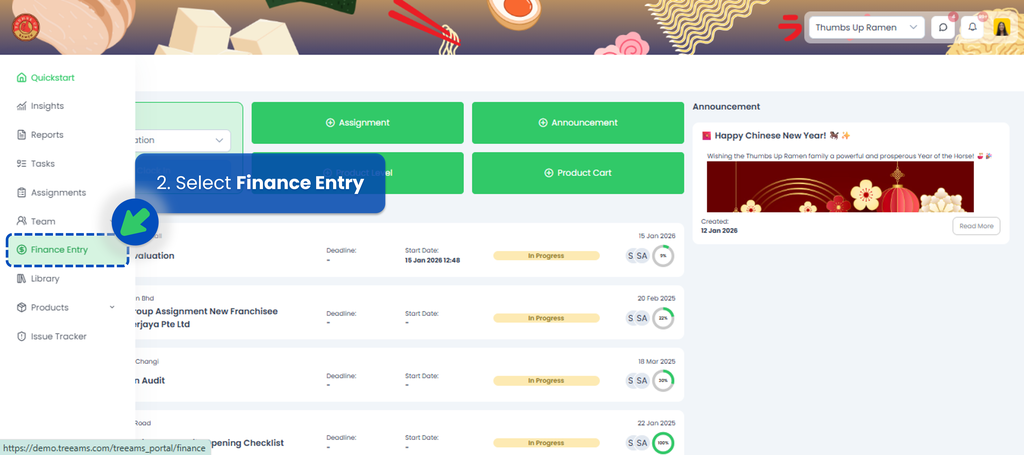
- Click "Create Finance Entry".
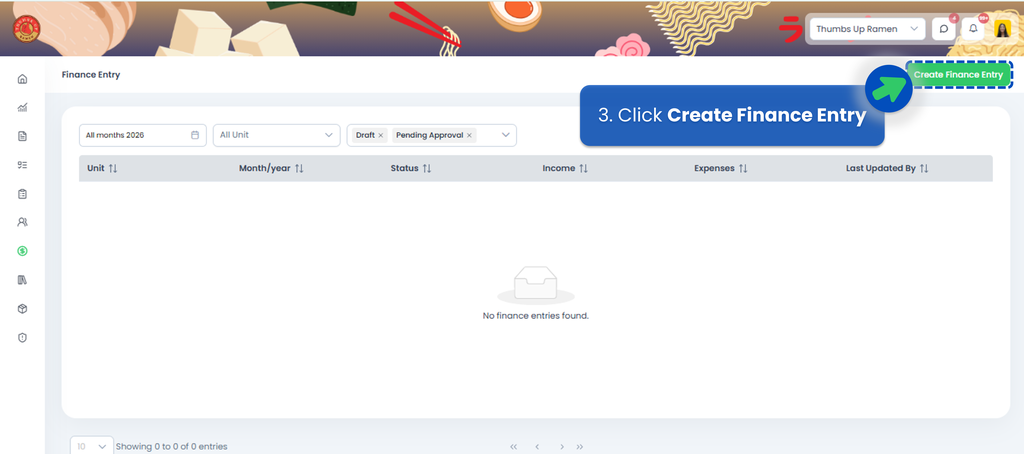
- Select the Unit/Location you want to create the Finance Entry for.
- Choose the reporting month, then click Next.
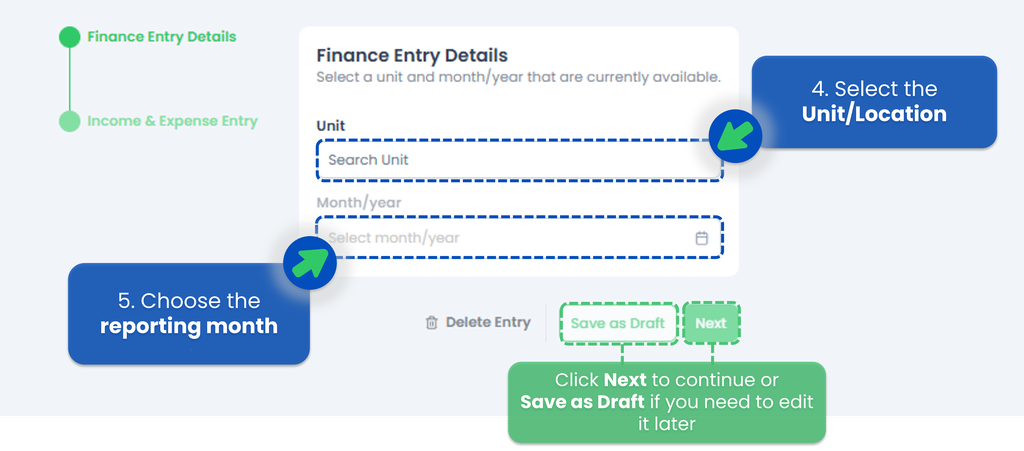
- If you click Next, the following section is Income & Expense Entry, where you need to fill in the required fields (the white boxes), as some sections will be auto-filled based on the finance setup in the system.
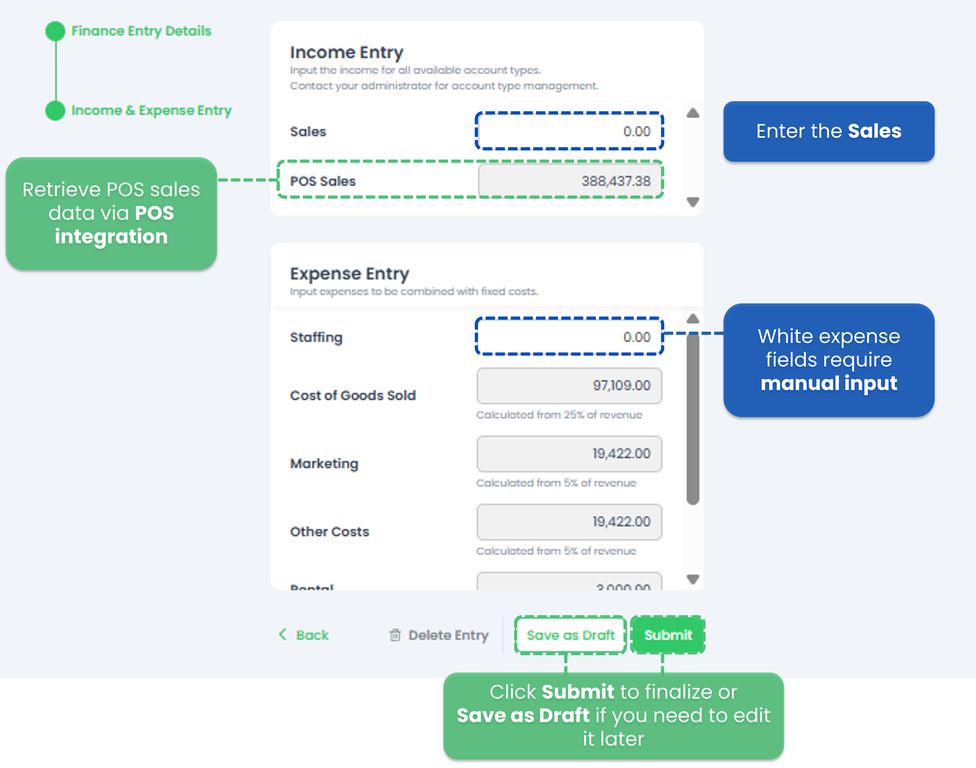
- White expense fields require manual input.
- POS integration is required to automatically retrieve sales data from your POS system.
- Expense values will be auto-calculated based on the Account List set up in Desk.
- Click Submit to finalize the Finance Entry, or Save as Draft if you need to edit it later.
⚠️ After you submit your Finance Entry, it will be saved in the Finance Entry list. Once a Finance Entry is submitted, it becomes final and cannot be deleted.
- Here's how your Finance Entry looks like after it has been submitted. Make sure to remove the default filters (Draft and Pending Approval) to view submitted entries.
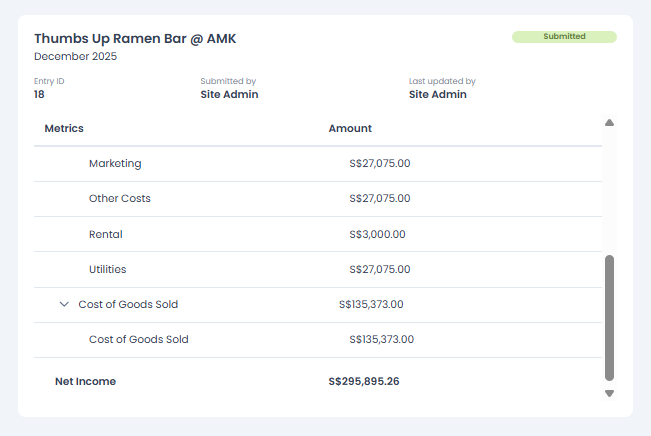
- The submitted data is immediately used in Financial Analytics.