Finance Entry Deletion
Before you submit — a word of caution
Once a Finance Entry is submitted, it can only be deleted by an admin or Finance Manager. To avoid unnecessary deletion requests:
- If you are not ready to finalise the entry, save it as a Draft instead of submitting.
- Double-check all figures and details before hitting Submit.
- Drafts can be edited at any time without requiring deletion.
Submitted Finance Entries cannot be deleted from the Portal - Finance module. Deletion is only possible through the TAMS Journal Entry page, which serves as the back-end record of all Finance Entries. Access to this page is restricted to ensure data integrity.
Who can delete a Finance Entry?
Only the following roles can delete a submitted Finance Entry via TAMS Journal Entry:If you do not have either of these roles, contact your manager or admin to request the deletion on your behalf.
- Site Admin, or
- Site User with the TAMS Finance Manager subrole
Accessing TAMS Journal Entry
- Go to Desk. Learn how you can switch to Desk here!
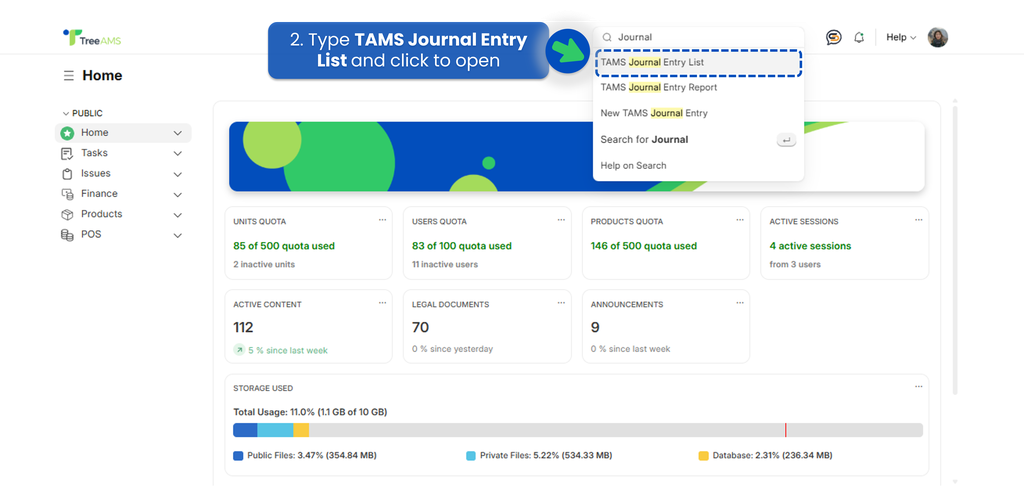
- Type "TAMS Journal Entry" in the search bar at the top of the screen, then click to open.
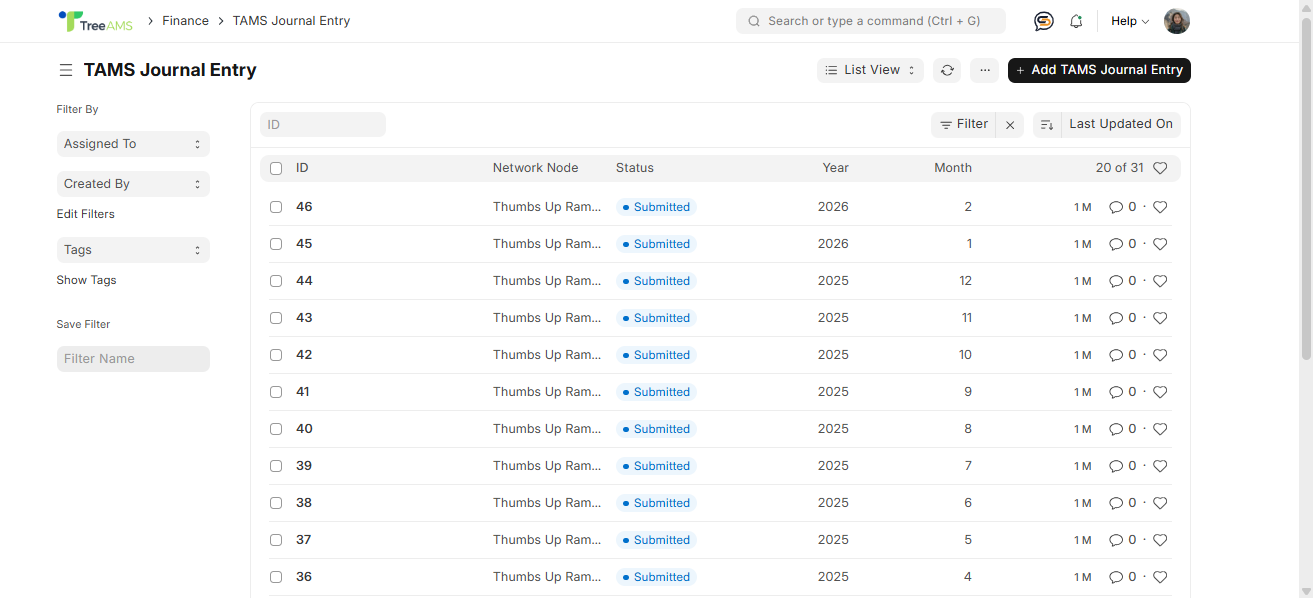
- You will land on the Journal Entry list, which shows all submitted Finance Entries with their ID, Network Node, Status, Year, and Month.
Deleting a Finance Entry
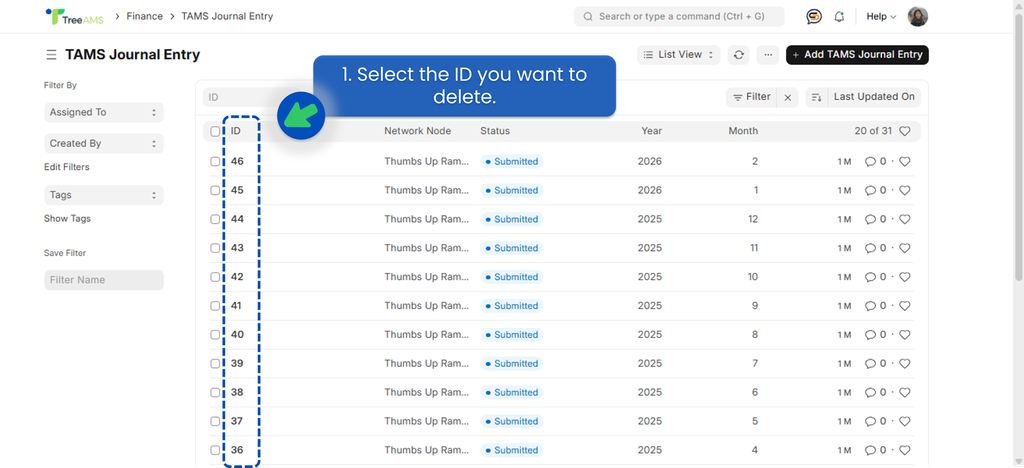
- Click on the ID of the entry you want to delete.
- Click the three-dot menu (...) in the top right corner of the entry, then select Delete.
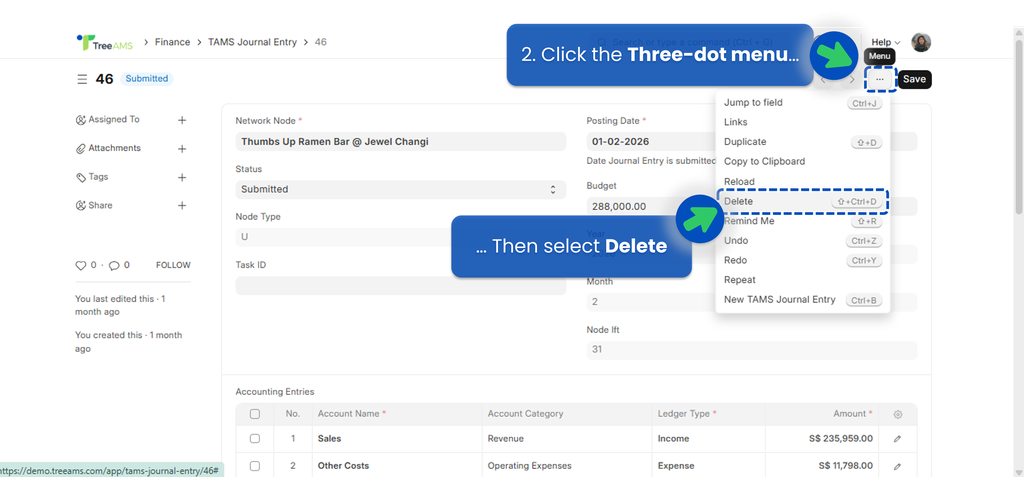
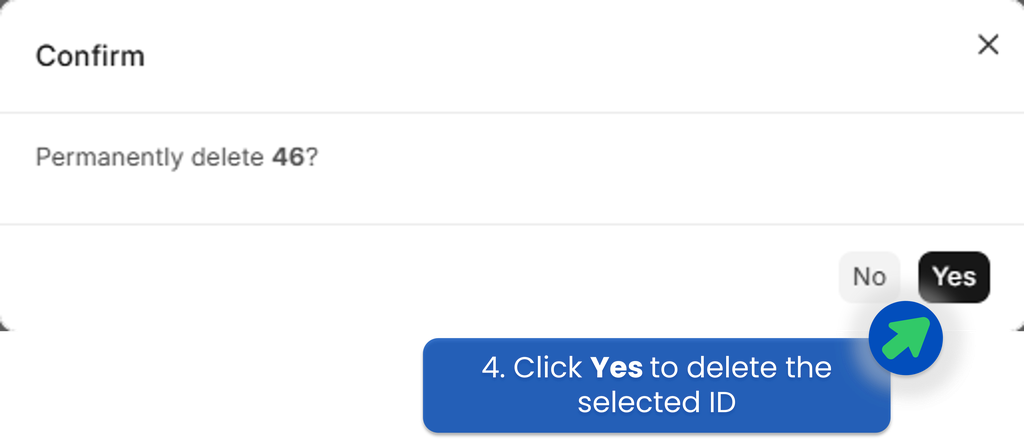
- A confirmation pop-up will appear asking you to confirm the permanent deletion.
- Click Yes to confirm. The entry will be permanently deleted and cannot be recovered.