🚧 Posting & Managing Announcements (ℂ𝕠𝕞𝕚𝕟𝕘 𝕤𝕠𝕠𝕟!)
This section covers:
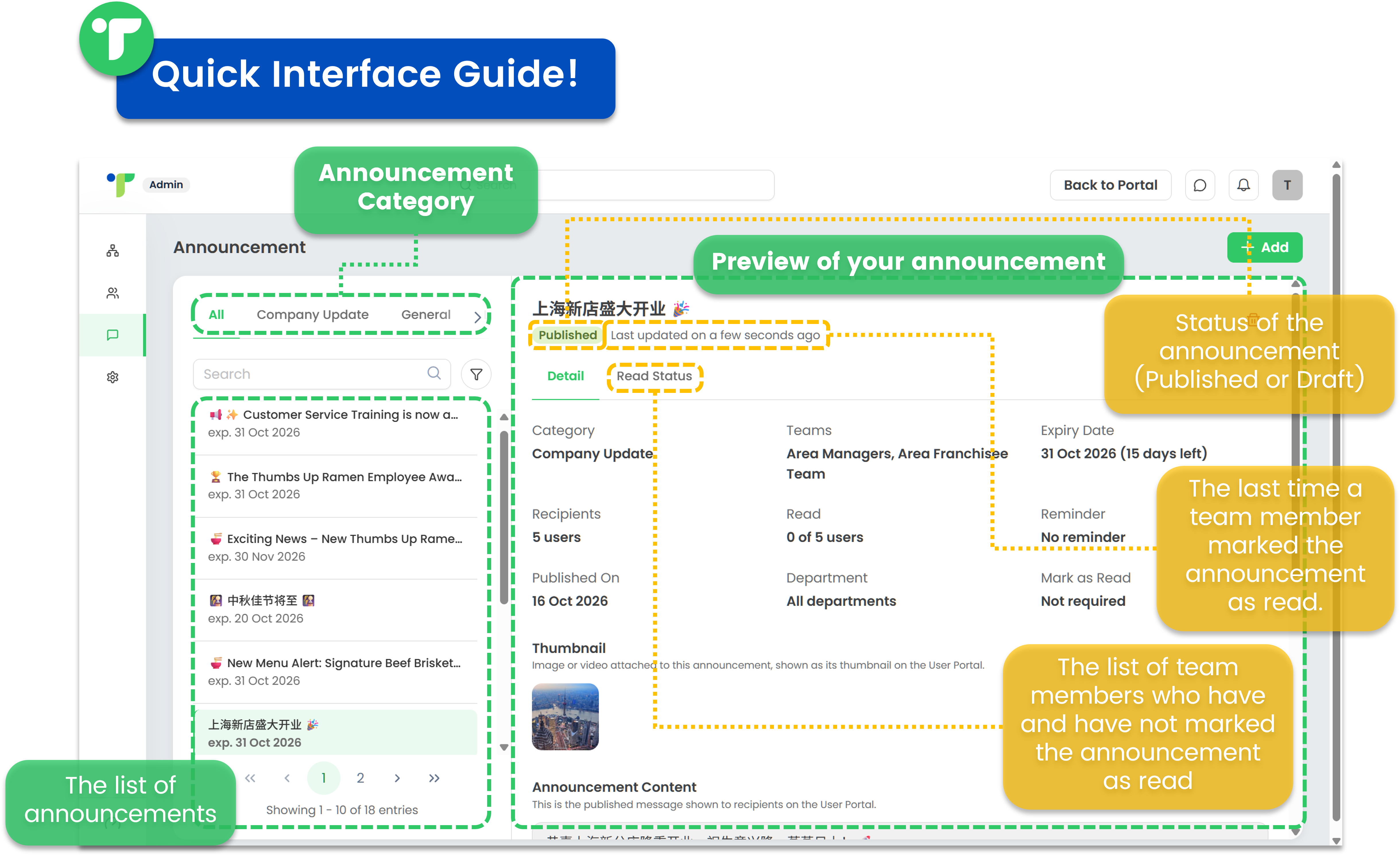
In TreeAMS, you can post announcements to keep your team informed about important updates, company news, and other essential information.
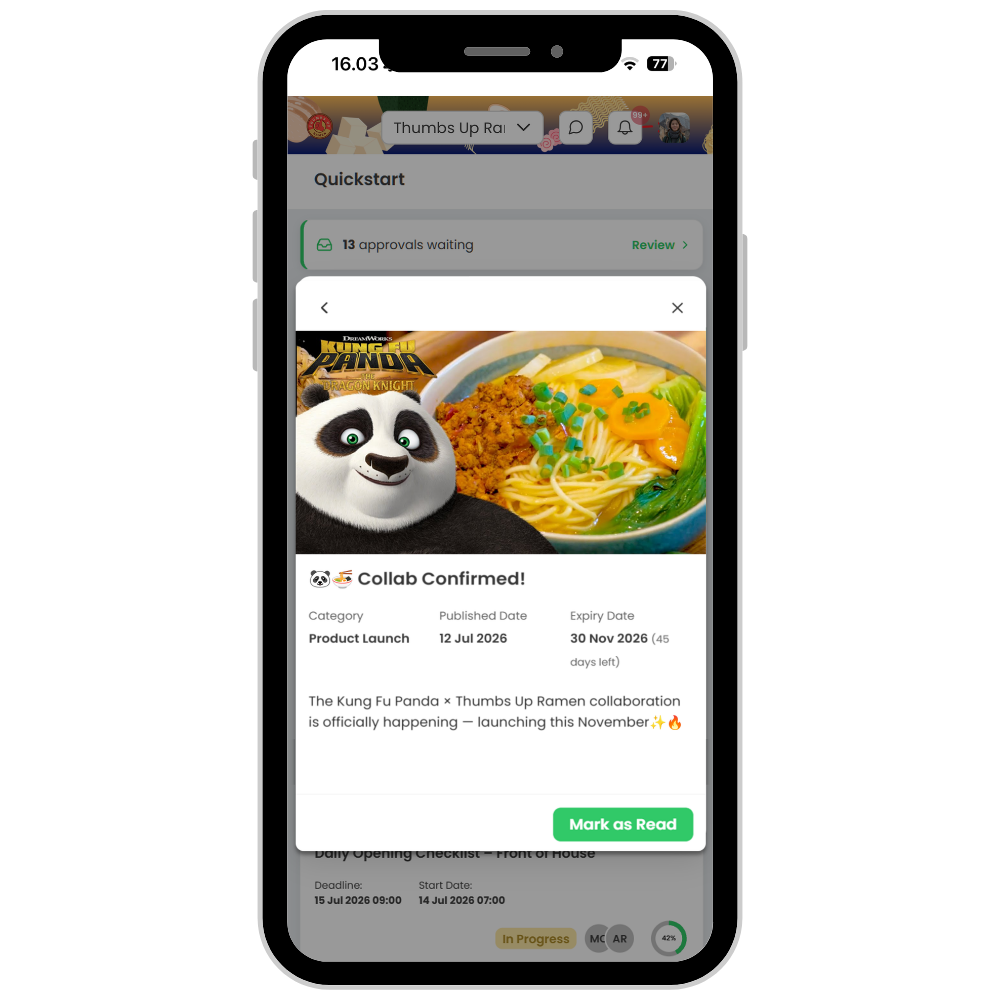
Posting Announcements
- If you're on the Portal, switch to Admin Portal (Desk). Learn how you can switch to Desk here!
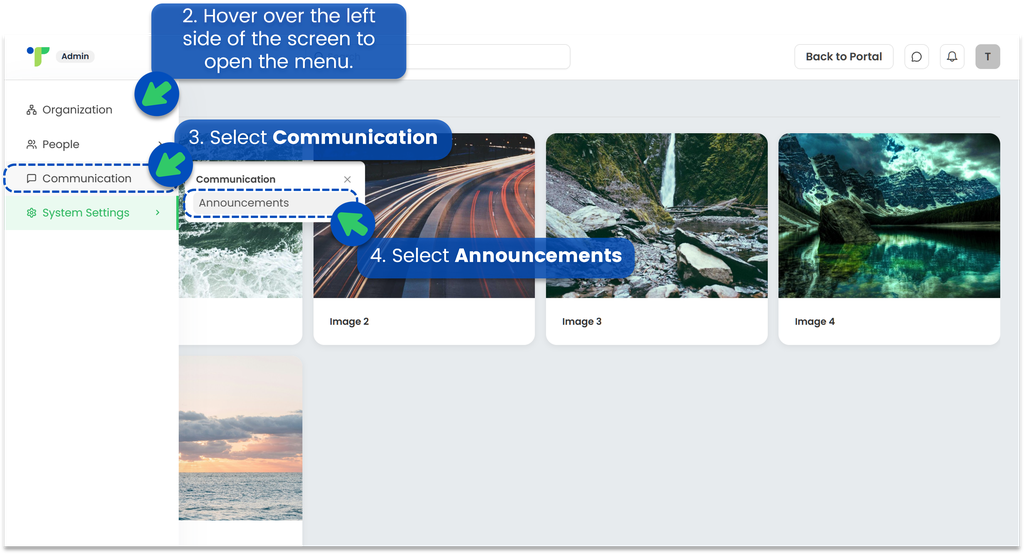
- Hover over the left side of the screen to open the menu.
- Select Communication
- Select Announcements
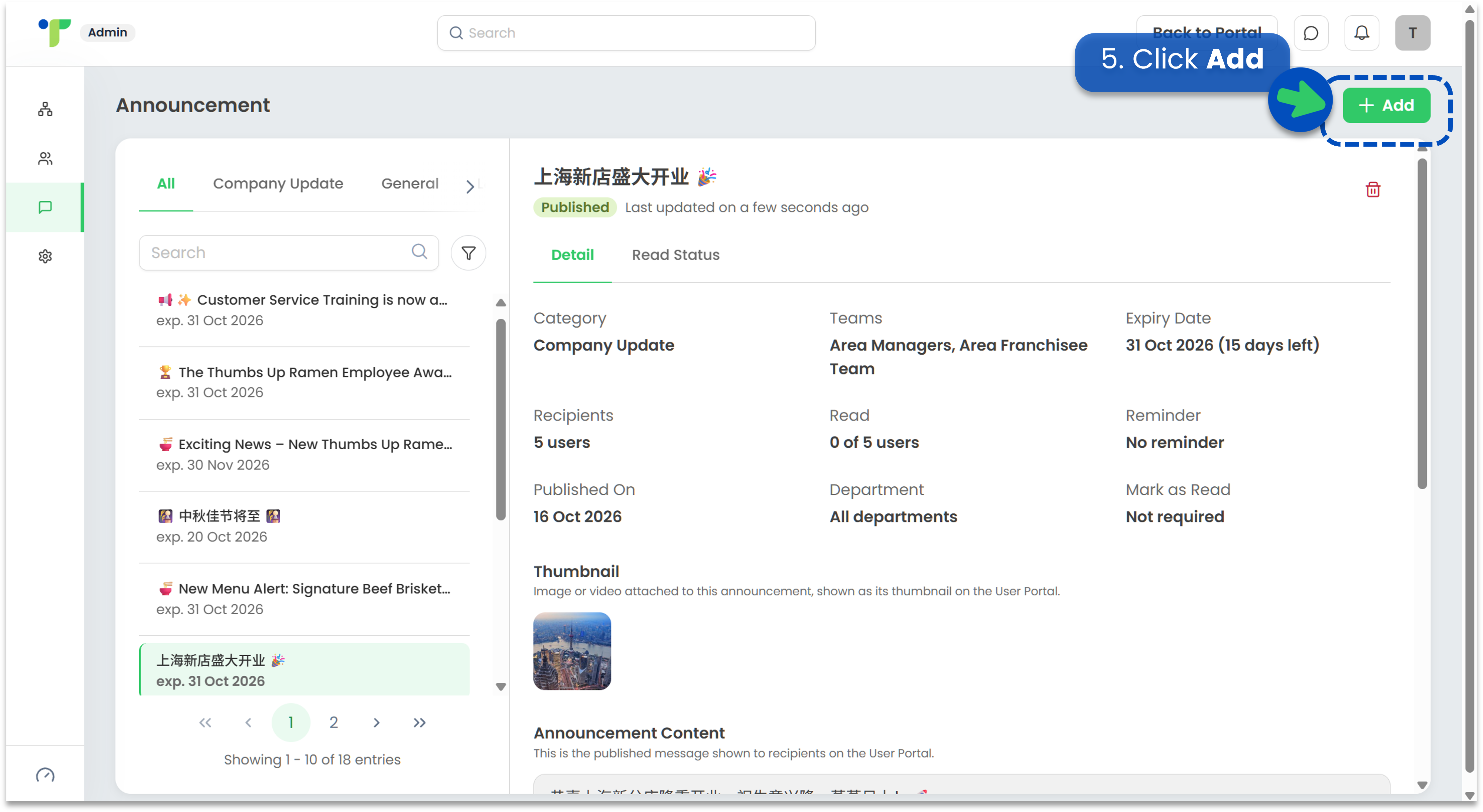
- Click Add
- Enter the announcement details
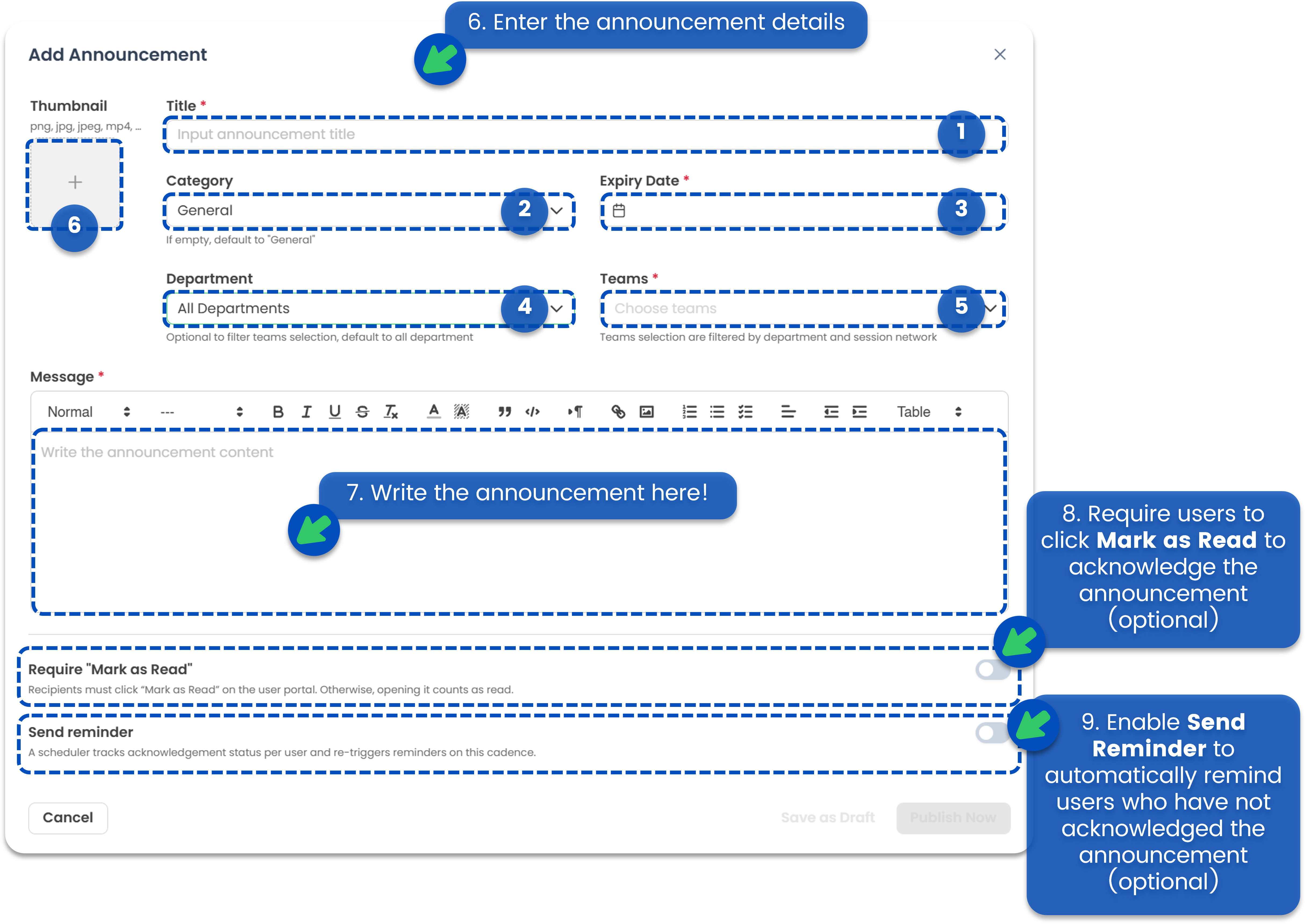
- Title: The title of the announcement.
- Category: The category used to group announcements, such as company updates or product launches. Refer to this Guide to learn how to create your own announcement categories.
- Expiry Date: The last date the announcement will be available.
- Departments: The departments allowed to view the announcement. This field is optional.
- Teams: The teams allowed to view the announcement, such as frontliners or maintenance. Multiple teams are allowed.
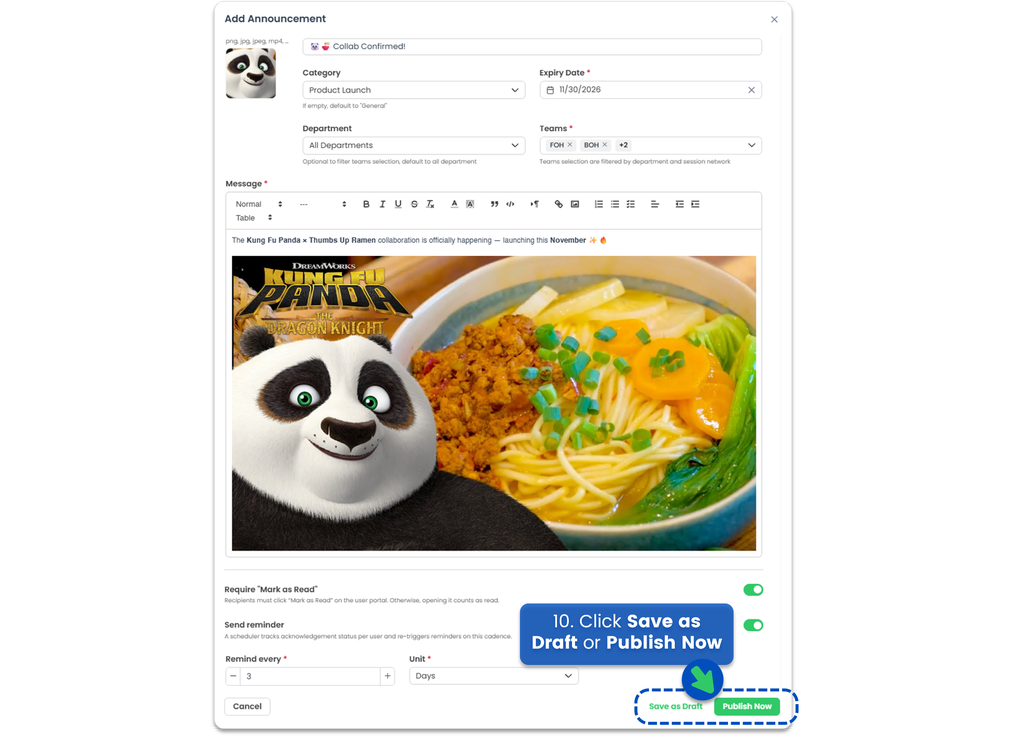
- Write your announcement in the text box. You can also add pictures, tables, and links to make it more informative.
- Enable Read Acknowledgement to require recipients to click Mark as Read to acknowledge the announcement. If disabled, opening the announcement automatically marks it as read.
- Enable Reminders to automatically send reminders to users who have not acknowledged the announcement, based on the configured reminder schedule
If Send Reminder is enabled, set the reminder frequency in hours or days to determine how often reminders are sent.

- Click Publish Now to publish the announcement immediately, or Save as Draft to publish it later
⚠️ Published announcements cannot be edited.
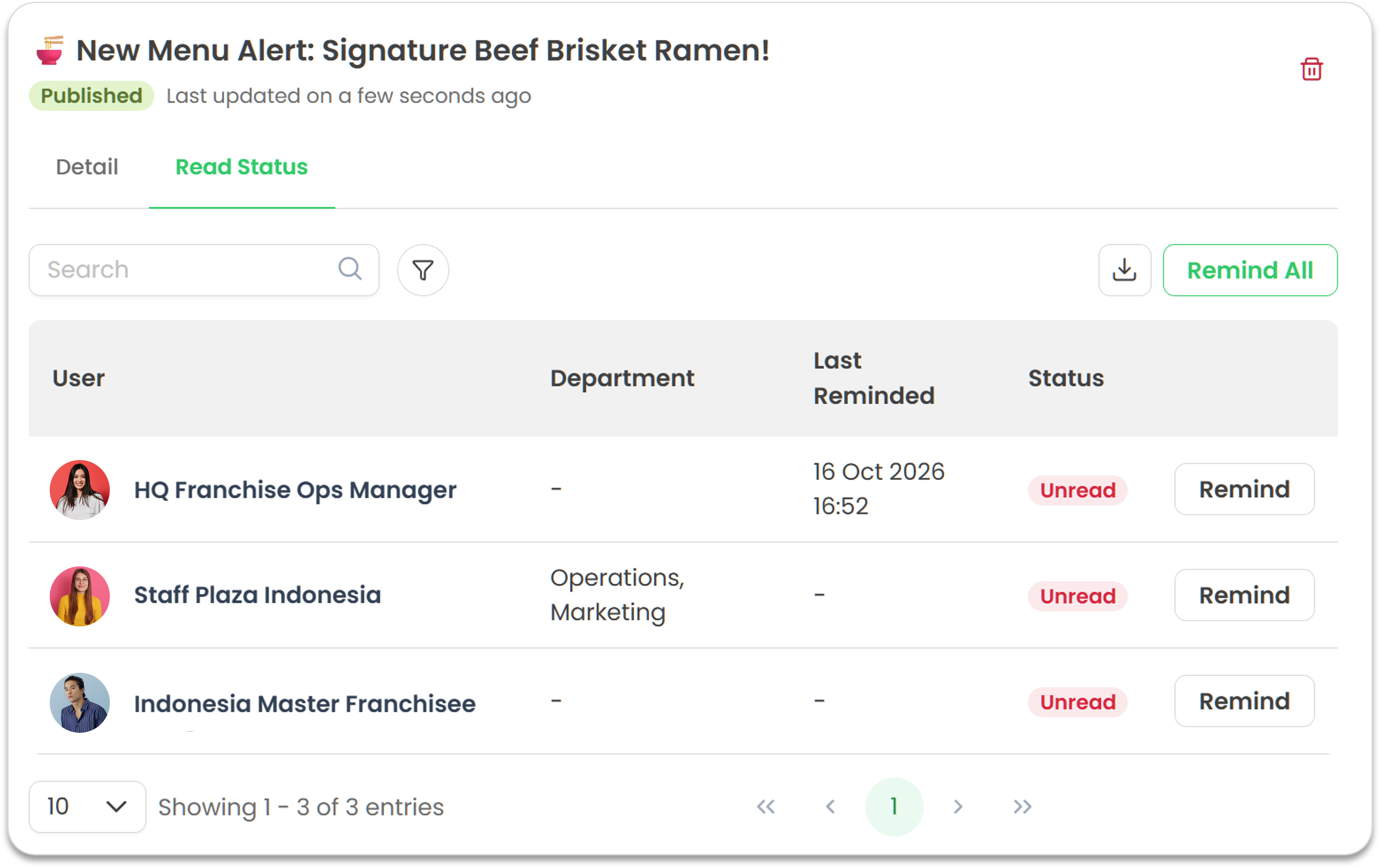
- Your announcement has been published successfully! You can track who has read it under Read Status and send reminders to those who haven’t.
Deleting an Announcement
- If you're on the Portal, switch to Admin Portal (Desk). Learn how you can switch to Desk here!
- Hover over the left side of the screen to open the menu.
- Select Communication
- Select Announcements
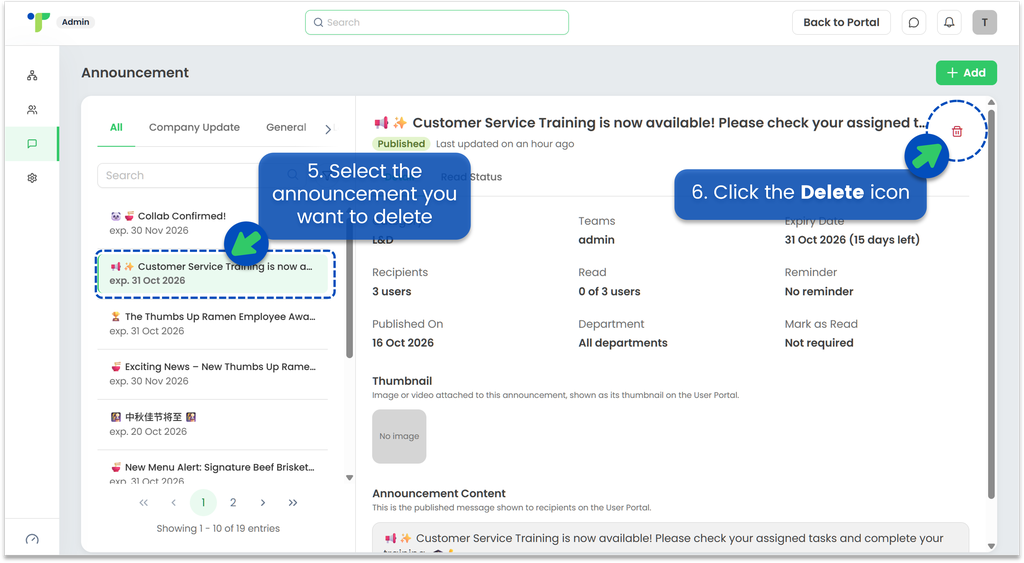
- Select the announcement you want to delete
- Click the Delete icon
- Select Yes to confirm. ⚠️ Note: Deleting an announcement cannot be undone.

Creating an Announcement Category
If you need assistance, please email us at
connect@treeams.com
.
We are happy to help! 👋😊